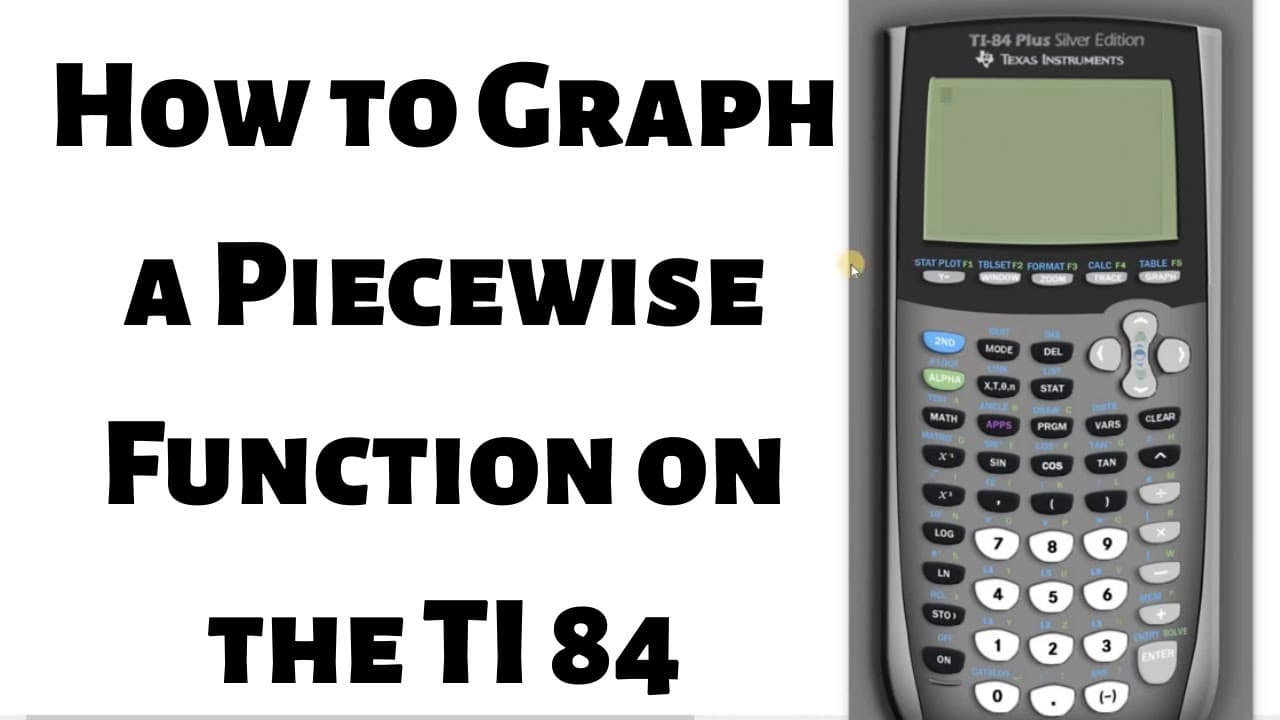
How to Graph a Piecewise Function in the TI 84
TL;DR
This video demonstrates how to graph a piecewise function step-by-step on a TI-84 calculator, including entering equations and inequalities.
Transcript
hi everyone in this video we're going to graph a piecewise function using the ti-84 calculator I'm going to go through the steps very very slowly so the first thing you do is you press the y equals button so y equals and this is where we're going to enter everything so there's a couple ways to do this we're gonna do it using division so here's how ... Read More
Key Insights
- 🎮 The video provides step-by-step instructions for entering equations, inequalities, and compound inequalities on the TI-84 calculator.
- ♿ It emphasizes the importance of using parentheses when necessary and accessing the test menu for specific mathematical symbols.
- 🔣 Graphing piecewise functions requires careful input of equations and inequalities, ensuring correct symbols and values are entered.
- 🎮 The video showcases the usefulness of the TI-84 calculator for graphing complex mathematical functions.
- 🧡 Following the demonstrated steps, users can confidently graph a wide range of piecewise functions using the TI-84 calculator.
- 🤬 The division symbol and various inequality symbols are essential for accurately representing piecewise functions on a graph.
- 📈 The tutorial advises double-checking the entered equations and inequalities before graphing to avoid mistakes.
Install to Summarize YouTube Videos and Get Transcripts
Explore YouTube Video Summarizer or Get YouTube Transcript Extractor
Questions & Answers
Q: How do you start graphing a piecewise function on a TI-84 calculator?
To start, press the y= button on your calculator and enter the first equation or expression in the form X + 1, using parentheses if necessary.
Q: How do you enter a division symbol for a piecewise function on a TI-84 calculator?
To enter a division symbol, use the division sign on the keyboard after typing the equation or expression, followed by the divisor in parentheses.
Q: How do you graph an inequality like X ≤ -3 on a TI-84 calculator?
To graph an inequality like X ≤ -3, press the second button followed by the test button. Scroll down to find the less than or equal to option and press enter. Then enter the value -3.
Q: How do you graph a compound inequality on a TI-84 calculator?
To graph a compound inequality like X > -3 and X < 1, use the test option for greater than (-3) and the logical "and" operator from the logic menu, followed by the test option for less than (1).
Summary & Key Takeaways
-
The video provides a slow and detailed explanation of graphing a piecewise function on a TI-84 calculator.
-
It demonstrates entering equations and inequalities using the y= button and the test menu.
-
The tutorial includes examples of division, less than or equal to, greater than or equal to, and compound inequalities.
Read in Other Languages (beta)
Share This Summary 📚
Summarize YouTube Videos and Get Video Transcripts with 1-Click
Try YouTube Summary with ChatGPT & Claude or YouTube Transcript Generator
Explore More Summaries from The Math Sorcerer 📚



Summarize YouTube Videos and Get Video Transcripts with 1-Click
Try YouTube Summary with ChatGPT & Claude or YouTube Transcript Generator