GoPro Editor Gabriel Noguez Teaches File Organization with Automator
TL;DR
Learn how to use Automator, a free software on Mac, to organize and rename video clips based on frame rate in order to make editing easier.
Transcript
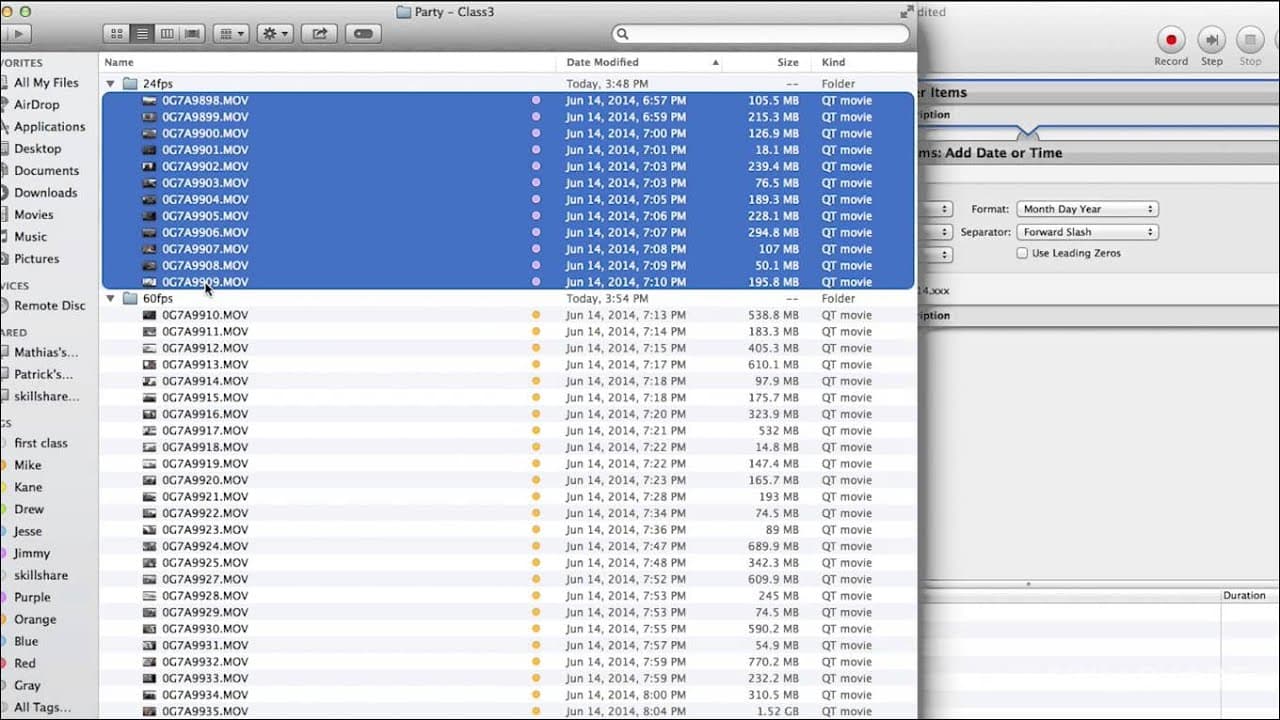
okay so now we're back here we have two folders in the main party folder but this numbers this file name comes straight from the camera and I don't know what it means and so once I start editing and dropping this into my timeline it's going to be really difficult to know which shots are 60 frames per second and which shots are 24 frames per second ... Read More
Key Insights
- 🎮 Automator is a powerful tool for automating tasks and streamlining workflows in video editing.
- ☠️ Organizing and renaming clips based on frame rate and shooting order improves efficiency in the editing process.
- ☠️ Knowing the frame rate and shooting order of clips ensures smoother playback and maintains the desired narrative flow.
- 🎮 Automator can be used to create custom workflows for various tasks in video editing.
- 📋 Renaming clips with relevant information helps in easily identifying and locating specific clips during editing.
- 🎮 An organized file structure with properly named clips is crucial for efficient video editing.
- ⚾ Automator's ability to move and categorize clips based on specific criteria simplifies the organization process.
Install to Summarize YouTube Videos and Get Transcripts
Explore YouTube Video Summarizer or Get YouTube Transcript Extractor
Questions & Answers
Q: What is Automator and how can it help in organizing video clips?
Automator is a free software on Mac that allows users to create custom workflows. It can help in organizing video clips by automating the renaming process based on specific criteria, such as frame rate or shooting order.
Q: Why is it useful to know the frame rate and shooting order of video clips during editing?
Knowing the frame rate allows for smoother editing and ensures the clips are synchronized properly. The shooting order provides a visual narrative and helps in maintaining the desired flow of the video.
Q: Can Automator be used for organizing clips with different frame rates into separate folders?
Yes, by creating a workflow in Automator, users can specify different criteria, such as frame rate, and automatically move the clips to separate folders for easy categorization and access.
Q: How can renaming video clips using Automator benefit the editing process?
Renaming clips with relevant information, such as frame rate, allows editors to quickly identify and locate specific clips during the editing process. It saves time and reduces confusion.
Summary & Key Takeaways
-
The content demonstrates how to use Automator to organize video clips with different frame rates and rename them for easier identification during editing.
-
By creating a workflow in Automator, users can select specific clips and automatically rename them with relevant information.
-
Organizing and renaming clips based on frame rate and shooting order allows for a more efficient workflow in video editing.
Read in Other Languages (beta)
Share This Summary 📚
Summarize YouTube Videos and Get Video Transcripts with 1-Click
Try YouTube Summary with ChatGPT & Claude or YouTube Transcript Generator
Explore More Summaries from Skillshare 📚






Summarize YouTube Videos and Get Video Transcripts with 1-Click
Try YouTube Summary with ChatGPT & Claude or YouTube Transcript Generator