How to Retouch Skin in Photoshop for Beginners
TL;DR
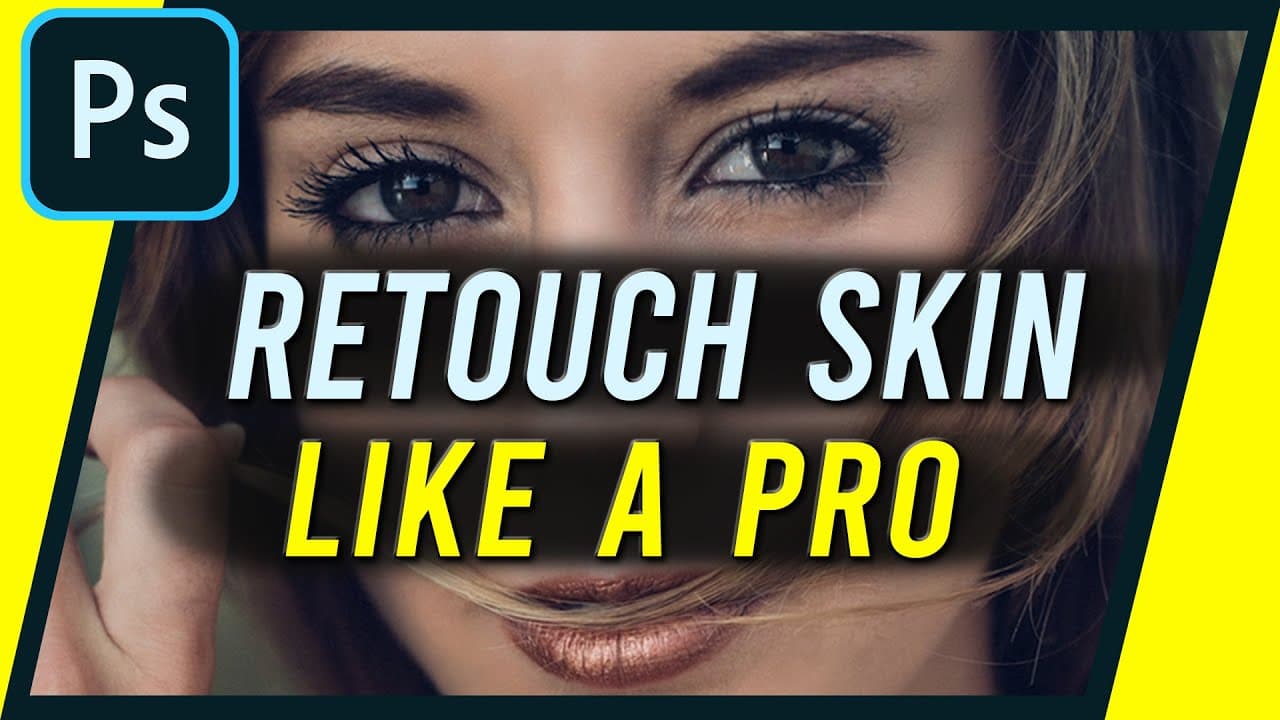
Learn how to quickly and effectively retouch skin using a two-step process in Photoshop.
Transcript
hey everyone in today's Photoshop video I want to show you how to professionally retouch skin inside a Photoshop and it's going to be a quick 2 step process the first step is removing any imperfections blemishes and things like that I'm gonna show you that first then we'll do it overall softening of the skin using a multi layer process and I'll sho... Read More
Key Insights
- 💨 The Spot Healing Brush tool is a fast and effective way to remove imperfections and blemishes from skin.
- 😒 The use of layer duplication, inversion, and high pass and Gaussian blur filters helps achieve a softening effect on the skin.
- 😷 Using a layer mask and brush allows for precise painting and smoothing of the skin.
- 👻 Adjusting the opacity of the retouching layer allows for customization and control over the final result.
- ❤️🩹 The entire skin retouching process can be done relatively quickly and produces high-end results.
- ❓ Practice and familiarity with the process will make it quicker and more efficient.
- 👅 The intensity of the retouching can be adjusted to personal taste and the desired level of retouched appearance.
Install to Summarize YouTube Videos and Get Transcripts
Explore YouTube Video Summarizer or Get YouTube Transcript Extractor
Questions & Answers
Q: What is the first step in retouching skin using Photoshop?
The first step is to remove imperfections and blemishes using the Spot Healing Brush tool. Simply select the tool, ensure the type is set to content-aware, and click and drag over the imperfections to remove them.
Q: How can I soften the skin in Photoshop?
To soften the skin, duplicate the layer, invert it, change the blend mode to vivid light, apply the high pass filter with a value of around 24-25, and then apply the Gaussian blur filter with a value between three and five. Use a layer mask and a brush to paint over the skin, smoothing it out.
Q: How can I adjust the opacity of the skin softening effect?
After applying the softening effect, you can adjust the opacity of the layer to control the intensity of the retouching. Simply select the layer and use the opacity slider to decrease or increase the opacity to your desired level.
Q: How long does the entire skin retouching process take?
With practice, the entire process can be completed within a few minutes. Initially, it may take a bit longer, but once you get used to the steps, it becomes a quick and efficient process.
Summary & Key Takeaways
-
Step 1: Remove imperfections and blemishes using the Spot Healing Brush tool.
-
Step 2: Soften the skin using a multi-layer process, including inverting the layer, applying high pass and Gaussian blur filters, and using a layer mask to paint and smooth out the skin.
-
The entire process can be completed in just a few minutes and results in high-end retouched skin.
Read in Other Languages (beta)
Share This Summary 📚
Summarize YouTube Videos and Get Video Transcripts with 1-Click
Try YouTube Summary with ChatGPT & Claude or YouTube Transcript Generator
Explore More Summaries from Howfinity 📚



Summarize YouTube Videos and Get Video Transcripts with 1-Click
Try YouTube Summary with ChatGPT & Claude or YouTube Transcript Generator