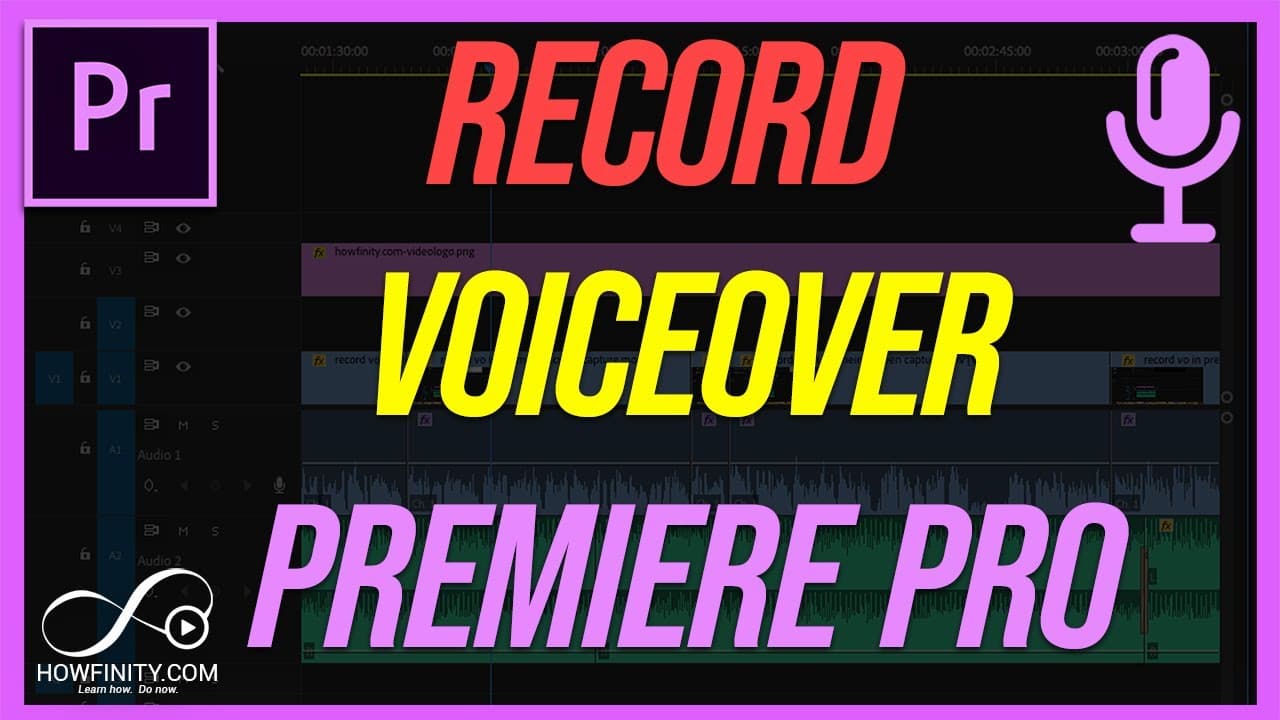
How to Record Voiceover on Premiere Pro
TL;DR
Learn how to set up and use a USB mic to record high-quality voiceover in Premiere Pro.
Transcript
A actually use this USB mic. So this USB mic is plugged in right into my computer and and premiere can actually recognize it as an external mic. And this is just under 50 bucks actually and it's really good audio quality. I'll have a link in the description to this mic. So in premiere, you gotta just turn on a couple of things and then you can ba... Read More
Key Insights
- 🫀 USB mics can be easily integrated with Premiere Pro, providing a convenient solution for voiceover recording.
- 🥶 Turning on specific settings in Premiere Pro preferences and timeline allows for smooth and glitch-free voiceover recording.
- 🪈 Customizing the workspace enables easy access to the voiceover record icon.
- 👻 Using separate tracks for voiceover recording allows for greater flexibility during the editing process.
- 👋 USB mics offer a cost-effective option for achieving good audio quality in Premiere Pro.
- 🪈 The "Mute input during timeline recording" option prevents feedback loops while recording voiceover.
- 🗞️ A pre-roll or post-roll can be set up to provide countdown cues for voiceover recording.
Install to Summarize YouTube Videos and Get Transcripts
Explore YouTube Video Summarizer or Get YouTube Transcript Extractor
Questions & Answers
Q: What is the benefit of using a USB mic for voiceover recording in Premiere Pro?
Using a USB mic allows for direct connection to the computer, eliminating the need for additional audio equipment and ensuring good audio quality.
Q: How can I enable voiceover recording in Premiere Pro?
First, ensure that the correct audio track is enabled and set up the mic in the voiceover settings. Then, customize the workspace to include the voiceover record icon and turn on the "Mute input during timeline recording" option in the preferences.
Q: Can different tracks be used for recording voiceover in Premiere Pro?
Yes, multiple tracks can be used for voiceover recording in Premiere Pro. Simply select the desired track before pressing the voiceover record button.
Q: How can voiceover be aligned with video in Premiere Pro?
By recording voiceover on separate tracks, it becomes easier to align the audio with the corresponding video. Simply place the voiceover clips on the appropriate tracks during the editing process.
Summary & Key Takeaways
-
The USB mic can be easily set up in Premiere Pro and recognized as an external mic, providing good audio quality.
-
To enable voiceover recording, certain settings need to be turned on in the preferences and timeline of Premiere Pro.
-
The voiceover record icon can be added to the audio track by customizing the workspace.
Read in Other Languages (beta)
Share This Summary 📚
Summarize YouTube Videos and Get Video Transcripts with 1-Click
Try YouTube Summary with ChatGPT & Claude or YouTube Transcript Generator
Explore More Summaries from Howfinity 📚

Summarize YouTube Videos and Get Video Transcripts with 1-Click
Try YouTube Summary with ChatGPT & Claude or YouTube Transcript Generator