How to Navigate Google Ads Dashboard Efficiently
TL;DR
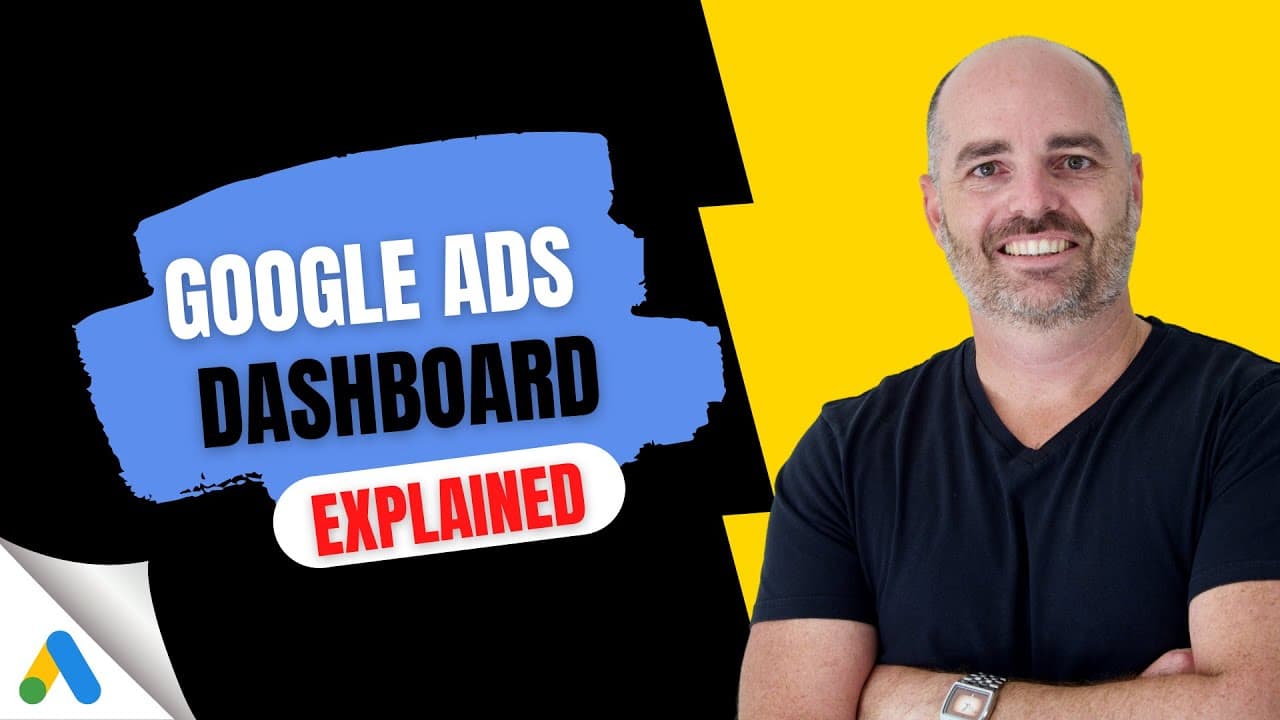
To navigate the Google Ads dashboard efficiently, understand its layout consisting of three main columns: main navigation, sub-navigation, and the main dashboard. Utilize the search function for quick access to specific features. Employ filters, segments, and custom columns to streamline optimization processes and save time.
Transcript
have you ever wasted precious minutes and hours in your day trying to find something in google ads you were there last time but for some reason today you just can't find where you need to go so you're clicking different buttons but you're just getting nowhere to make sure that you don't waste time when you're optimizing your google ads campaigns yo... Read More
Key Insights
- The Google Ads dashboard has three main columns: main navigation, sub-navigation, and the main dashboard.
- The main navigation column is used to select major campaigns for optimization.
- The sub-navigation column displays data related to selected campaign types.
- The main dashboard column is where all Google Ads data and optimizations occur.
- The top menu bar provides account-wide reporting and tools but is not for optimizations.
- Using the search function allows quick access to specific Google Ads features.
- Segments and filters are powerful tools for analyzing and optimizing campaign performance.
- Customizing columns helps display relevant data for specific optimization needs.
Install to Summarize YouTube Videos and Get Transcripts
Explore YouTube Video Summarizer or Get YouTube Transcript Extractor
Questions & Answers
Q: How to navigate the Google Ads dashboard efficiently?
To navigate the Google Ads dashboard efficiently, familiarize yourself with its layout, which includes the main navigation, sub-navigation, and main dashboard columns. Use the search function for quick access to specific features, and employ filters and segments to analyze performance data effectively. Customizing columns can also streamline your optimization process.
Q: What are the main components of the Google Ads dashboard?
The Google Ads dashboard consists of three main components: the main navigation column, the sub-navigation column, and the main dashboard column. The main navigation column is used for selecting campaigns, the sub-navigation column displays data related to selected campaigns, and the main dashboard is where all data and optimizations occur.
Q: How can filters and segments improve Google Ads optimization?
Filters and segments are essential tools for improving Google Ads optimization. Filters help isolate specific keywords or ad copies for detailed analysis, while segments allow for a breakdown of conversion data by different dimensions. These tools enable advertisers to identify areas that need attention and optimize campaigns more effectively.
Q: What is the purpose of the top menu bar in Google Ads?
The top menu bar in Google Ads provides access to account-wide reporting and tools. It includes options for generating reports, managing tools and settings, and accessing billing information. However, it is not used for making campaign optimizations, which are conducted in the main dashboard column.
Q: How does the search function enhance Google Ads navigation?
The search function in Google Ads enhances navigation by allowing users to quickly access specific features or sections of their account. By typing in keywords related to the desired action, users can bypass the standard navigation process and directly reach the area they need, saving time and improving efficiency.
Q: Why is customizing columns important in Google Ads?
Customizing columns in Google Ads is important because it allows advertisers to display the most relevant data for their optimization needs. By selecting specific metrics and arranging them in a preferred order, users can focus on the information that matters most to their campaigns, facilitating more informed decision-making.
Q: What is the role of the sub-navigation column in Google Ads?
The sub-navigation column in Google Ads is used to display data related to the selected campaign type. It allows users to filter and view campaigns based on specific criteria, such as search or display campaigns, providing a more organized and focused view of their advertising efforts.
Q: How can advertisers save time when optimizing Google Ads campaigns?
Advertisers can save time when optimizing Google Ads campaigns by understanding the dashboard layout, using the search function for quick access, and employing filters and segments for detailed analysis. Additionally, customizing columns to display relevant data and utilizing the top menu bar for account-wide insights can streamline the optimization process.
Summary & Key Takeaways
-
Understanding the Google Ads dashboard layout is crucial for efficient navigation. The dashboard consists of three columns: main navigation, sub-navigation, and the main dashboard where optimizations occur. Utilize the top menu bar for account-wide data and the search function for quick access to specific features.
-
To optimize Google Ads campaigns, use filters and segments to analyze performance data effectively. Filters help isolate specific keywords or ad copies, while segments allow for detailed conversion analysis. Customizing columns ensures that necessary data is readily available for informed decision-making.
-
Efficient navigation of Google Ads involves mastering the dashboard's layout and utilizing built-in tools. The search function provides quick access to features, while filters and segments aid in performance analysis. Custom columns and the top menu bar offer additional insights for campaign optimization.
Read in Other Languages (beta)
Share This Summary 📚
Summarize YouTube Videos and Get Video Transcripts with 1-Click
Try YouTube Summary with ChatGPT & Claude or YouTube Transcript Generator
Explore More Summaries from Aaron Young | Google Ads | Define Digital Academy 📚


![Google Ads for Local Service Based Businesses [Updated for 2025] thumbnail](/_next/image?url=https%3A%2F%2Fi.ytimg.com%2Fvi%2FDyWrAujWQ8U%2Fhqdefault.jpg&w=750&q=75)
Summarize YouTube Videos and Get Video Transcripts with 1-Click
Try YouTube Summary with ChatGPT & Claude or YouTube Transcript Generator