How to Master Figma Tools and Components
TL;DR
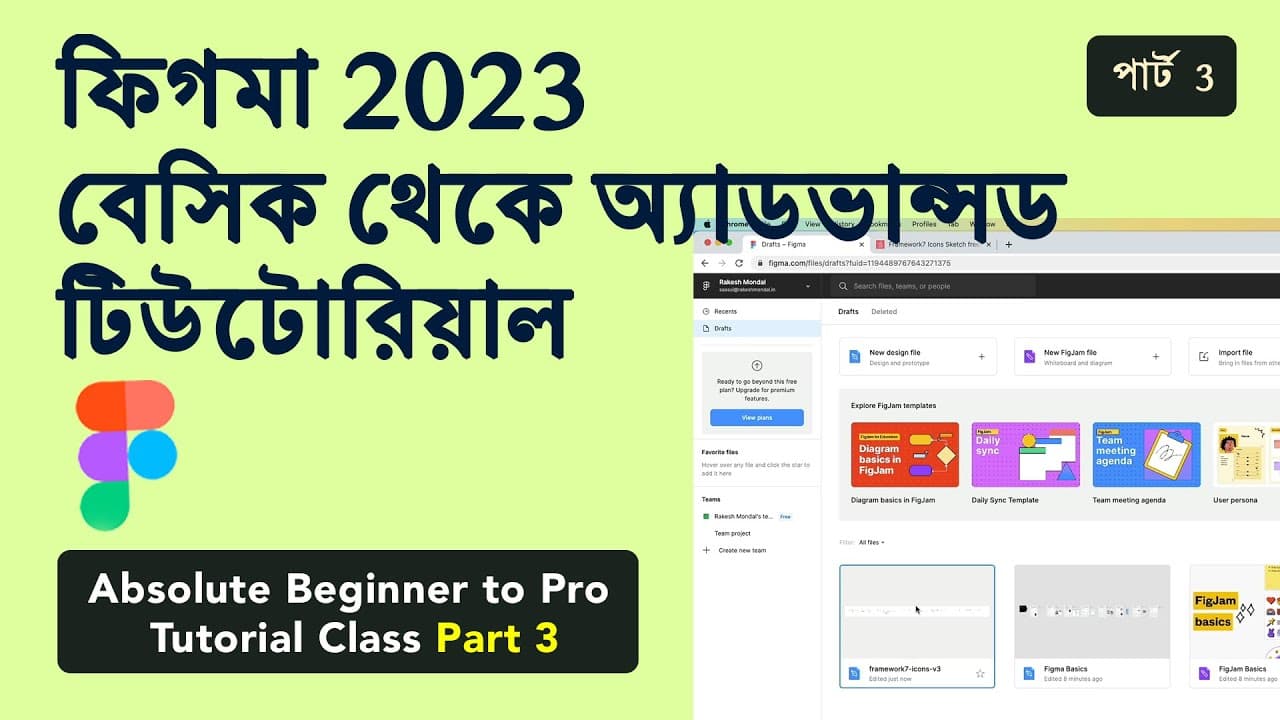
Learn how to effectively use Figma's text tools, styles, and components to enhance your design workflow. This tutorial covers text styling, component creation, and the use of plugins, providing a comprehensive guide for both beginners and advanced users. Mastering these features will improve your efficiency and design quality in Figma.
Transcript
welcome back to part three figma 2023 from beginners to Pro tutorial party um foreign foreign foreign no collect a video from a laptop camera on screen day important camera to import in them okay okay let's Jump On It is home dashboard uh home first screen okay so account S I can start writing this is my text tools foreign normal money um foreign f... Read More
Key Insights
- Figma's text tools allow you to style and align text efficiently, enhancing design consistency.
- Creating local styles in Figma helps maintain uniformity across design projects.
- Understanding positions and alignments in Figma is crucial for precise element placement.
- Nudge values in Figma assist in making incremental adjustments to design elements.
- Components in Figma enable reusable design elements, improving workflow efficiency.
- Duplicating components as instances allows for consistent yet flexible design variations.
- Figma's plugin ecosystem expands functionality, offering tools like Unsplash for image integration.
- The free version of Figma supports unlimited pages, but limits components to three pages.
Install to Summarize YouTube Videos and Get Transcripts
Explore YouTube Video Summarizer or Get YouTube Transcript Extractor
Questions & Answers
Q: How to use text tools in Figma?
Figma's text tools allow you to style and align text efficiently. You can adjust font size, type, and alignment to maintain design consistency. Creating local styles for text ensures uniformity across projects, saving time in future designs. These tools are essential for enhancing design quality and workflow efficiency.
Q: What are components in Figma?
Components in Figma are reusable design elements that can be duplicated as instances. This feature allows for consistent design elements across projects. By using components, designers can streamline their workflow, maintain uniformity, and easily update elements across multiple design files.
Q: How to create and apply styles in Figma?
Creating styles in Figma involves defining text and color attributes that can be reused throughout a project. To apply a style, select the text or element and choose the desired style from the local styles menu. This ensures design consistency and simplifies updates across multiple elements.
Q: What is the nudge value in Figma?
Nudge values in Figma determine the incremental distance an element moves when using the arrow keys. This feature allows for precise adjustments to element positioning, ensuring accurate alignment and spacing. Understanding and setting appropriate nudge values is crucial for meticulous design work.
Q: How to use plugins in Figma?
Figma's plugin ecosystem enhances design capabilities by integrating additional tools and functionalities. To use a plugin, install it from the plugin menu and follow the instructions for activation. Plugins like Unsplash provide access to external resources, streamlining the design process and expanding creative options.
Q: What are the limitations of Figma's free version?
Figma's free version offers unlimited pages, allowing for extensive project organization. However, it limits component use to three pages, which may affect projects requiring extensive component libraries. Despite this limitation, the free version provides ample functionality for most design needs, especially for individual designers or small teams.
Q: How to duplicate components as instances in Figma?
Duplicating components as instances in Figma allows for consistent design elements while permitting variations. To duplicate a component, select it and use the duplicate command. Instances can be customized without affecting the original component, offering flexibility and maintaining design uniformity across projects.
Q: How to integrate Unsplash images in Figma?
Integrating Unsplash images in Figma is facilitated through the Unsplash plugin. After installing the plugin, you can search and insert high-quality images directly into your design. This integration simplifies the process of sourcing visuals, enhancing the overall aesthetic and quality of design projects.
Summary & Key Takeaways
-
Figma's text tools are essential for styling and aligning text, providing consistency across designs. Creating local styles ensures uniformity and saves time in future projects. Understanding positions and alignments allows for precise placement of design elements, enhancing overall design quality.
-
Components in Figma are reusable design elements that streamline the workflow. By duplicating components as instances, designers can maintain consistency while allowing for design variations. The tutorial emphasizes the importance of practicing with components to master their use.
-
Figma's plugin ecosystem, including tools like Unsplash, enhances design capabilities by integrating additional functionalities. The tutorial demonstrates how to install and use plugins effectively. Additionally, the free version of Figma offers unlimited pages, though component use is limited to three pages.
Read in Other Languages (beta)
Share This Summary 📚
Summarize YouTube Videos and Get Video Transcripts with 1-Click
Try YouTube Summary with ChatGPT & Claude or YouTube Transcript Generator
Explore More Summaries from DesignOverFlow 📚
Summarize YouTube Videos and Get Video Transcripts with 1-Click
Try YouTube Summary with ChatGPT & Claude or YouTube Transcript Generator