5 TIPS to COLOUR GRADE LIKE A PRO in Lightroom (Free Preset!)
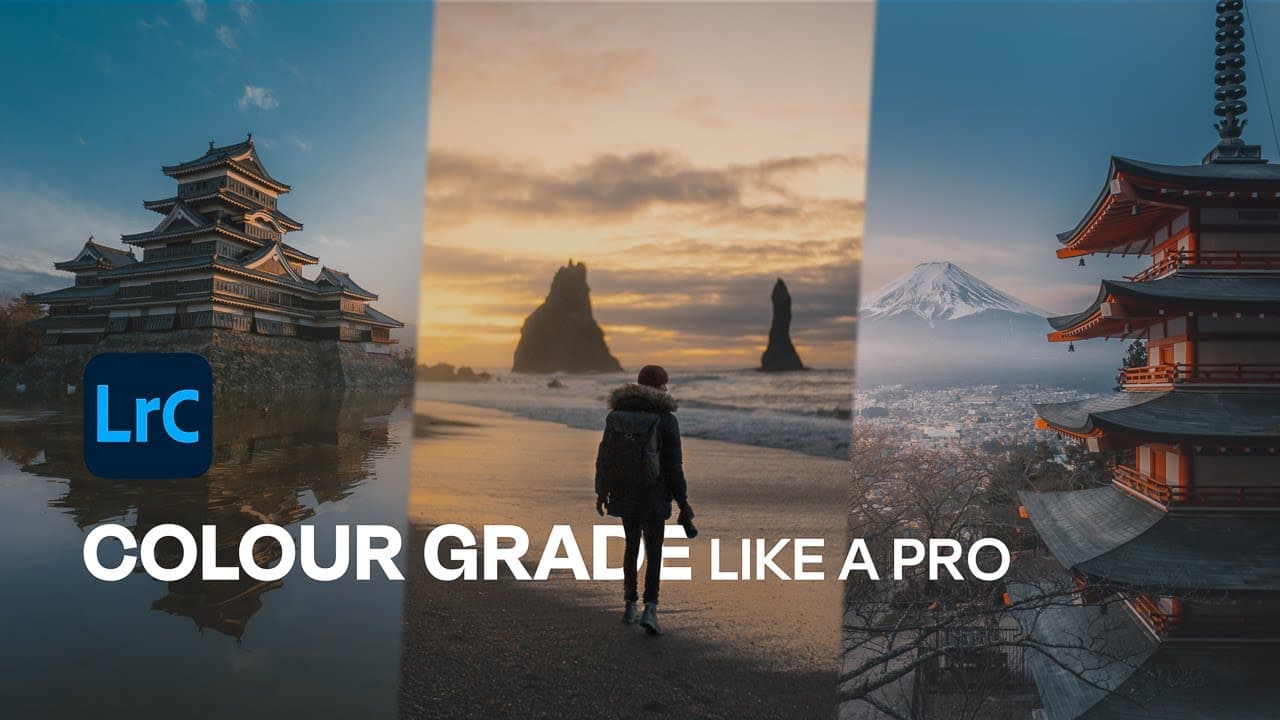
TL;DR
Learn how to color grade your photos in Lightroom using techniques like white balance correction, tone curve adjustments, split toning, camera calibration, and HSL settings.
Transcript
welcome to another 5-minute Lightroom tutorial today we're talking about color grading in Lightroom hello and welcome I'm photographer Tim Northey or better known as TK North if you're new here in this particular series I pick a part of Lightroom and try and explain as much information as possible in five minutes or close to today we're doing color... Read More
Key Insights
- 🎨 Color grading in Lightroom is a favorite editing technique for photographer TK North, who loves playing around with colors and exploring the possibilities.
- 📏 Correcting white balance is an important first step in color grading, allowing for adjustments to temperature and tint using sliders or the selected tool.
- 📈 Tone curves in Lightroom offer a powerful way to change the overall tone of an image, with individual curves for red, green, and blue channels.
- 🌈 Split toning allows for adding color to highlights and shadows separately, with the option to experiment with complementary colors for a desired effect.
- 📸 Camera calibration helps calibrate colors based on the camera used, creating interesting and creative looks when applied subtly.
- 🎨 The HSL (hue, saturation, luminance) or color tab enables manipulation and tweaking of colors for more precise adjustment, including affecting specific areas or selecting skin tones.
- 💡 Experimentation and combining different techniques can lead to unique and desired color grading results in Lightroom.
- 🔗 TK North offers a free preset for color grading, with the possibility of exploring more presets and tools available for purchase on their website. The Adobe color wheel can also be a useful tool for playing around with colors and creating color themes for editing.
Install to Summarize YouTube Videos and Get Transcripts
Explore YouTube Video Summarizer or Get YouTube Transcript Extractor
Questions & Answers
Q: How can I correct the white balance in Lightroom?
To correct the white balance, you can manually adjust the temperature and tint sliders, use the Auto feature, or select a white area in the photo with the selected tool to automatically adjust the white balance.
Q: How can I use the tone curve to change the overall tone and color of my image in Lightroom?
The tone curve allows you to adjust the shadows, mid-tones, and highlights of the image. You can make changes to specific colors or the overall RGB curve, being careful not to make drastic adjustments that could ruin the image.
Q: What is split toning in Lightroom, and how can I use it to enhance my photos?
Split toning allows you to add or change colors in the highlights and shadows of your image. By selecting complementary colors and adjusting the saturation, you can create a desired mood or look for your photo.
Q: How does camera calibration work in Lightroom, and what should I be cautious of?
Camera calibration helps you calibrate the colors in your photo, but it should be used subtly to avoid impacting skin tones. Adjusting the red primary, blue primary, and other settings can create unique and creative effects, but be careful not to go too extreme.
Q: How can I use the HSL tab in Lightroom to manipulate and tweak colors?
The HSL (hue, saturation, luminance) tab gives you control over individual colors. You can change the hue, saturation, and luminance of specific colors or use the selector tool to target certain areas, such as skin tones. Be cautious when adjusting saturation and luminance to avoid drastic changes in your photo's overall look.
Summary & Key Takeaways
-
Correcting the white balance is the first step in the color grading process, either through manual adjustments or using the selected tool.
-
Utilize the tone curve feature to change the overall tone and color of the image, being cautious not to make drastic adjustments.
-
Split toning allows you to play with colors in the highlights and shadows, using complementary colors to create a desired effect.
-
Camera calibration is a tool to adjust colors in a creative way, but it should be used subtly to avoid impacting skin tones.
-
The HSL (hue, saturation, luminance) tab provides further control over individual colors, allowing adjustments in intensity, reflection, and more.
Read in Other Languages (beta)
Share This Summary 📚
Summarize YouTube Videos and Get Video Transcripts with 1-Click
Try YouTube Summary with ChatGPT & Claude or YouTube Transcript Generator
Explore More Summaries from TKNORTH 📚

Summarize YouTube Videos and Get Video Transcripts with 1-Click
Try YouTube Summary with ChatGPT & Claude or YouTube Transcript Generator