How to align picture into same position of each slide in PowerPoint 2019
TL;DR
Learn quick methods to duplicate and resize images in presentation slides.
Transcript
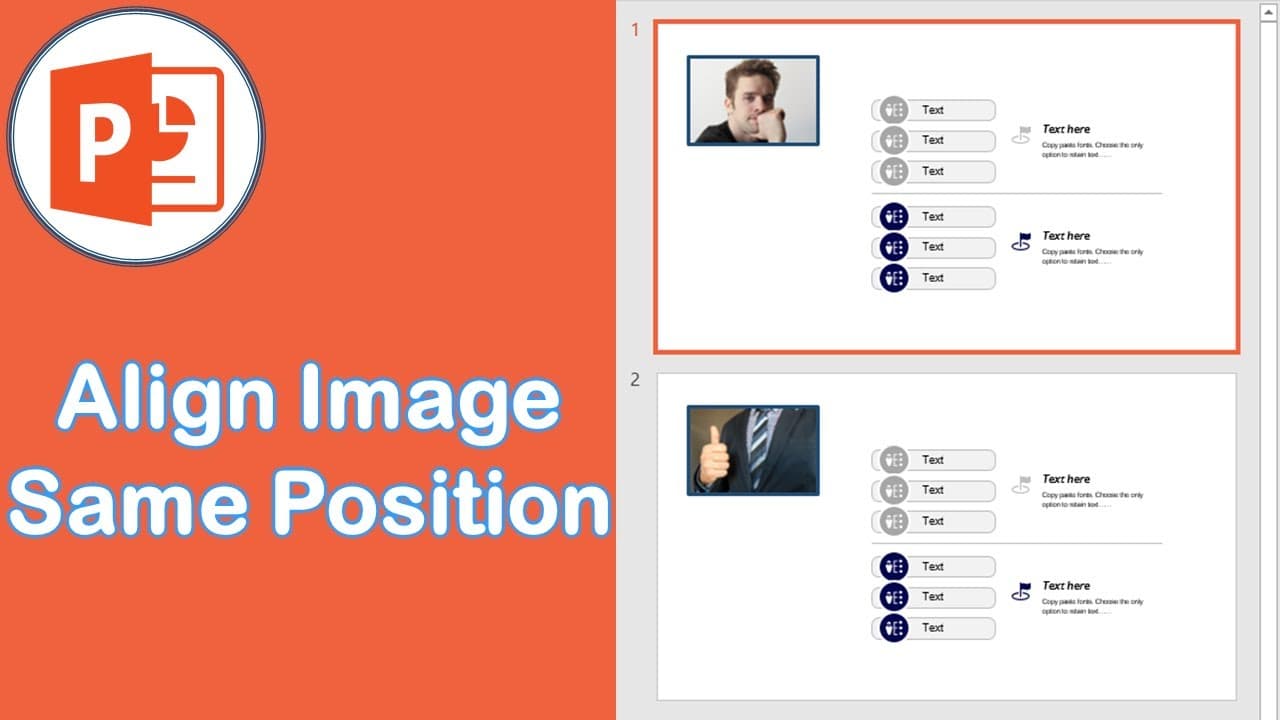
sometimes the day will create appointment you want to slice have the picture are the same position today I will show you how to do that the first Mercer Mercer is to change the picture so what we you will do is click this first slice right click duplicate slice now you have two slides on the same picture are same position and for the second slice y... Read More
Key Insights
- 🧘 Duplicating images and maintaining their positions enhances the clarity of presentations.
- 🗯️ Users can replace images easily by utilizing the right-click options, simplifying the workflow.
- ❓ Different image dimensions can be managed through cropping and resizing techniques, maintaining aesthetic alignment.
- 😒 The use of text boxes in conjunction with image placement can add clarity and structure to slides.
- 👤 The video tutorial emphasizes user-friendly methods suitable for both beginners and experienced users.
- 👀 Proper formatting within presentation software is crucial for creating professional-looking slides.
- 🫵 Viewers are encouraged to subscribe for more helpful tips on presentation design and techniques.
Install to Summarize YouTube Videos and Get Transcripts
Explore YouTube Video Summarizer or Get YouTube Transcript Extractor
Questions & Answers
Q: What is the first method for duplicating images in slides?
The first method involves right-clicking the image in the presentation and selecting the "duplicate slice" option. This creates two identical slides with the same picture in the same position. It offers a straightforward way to ensure visual consistency in your presentation.
Q: How do you change an image in the duplicate slides?
After duplicating the slide, you can change the image by right-clicking on the new slide and choosing "Change picture from a file." This allows you to select another image, ensuring that it is positioned similarly to the original one, maintaining uniformity across the slides.
Q: What should you do if the new image has different dimensions than the original?
If the new image has different dimensions, you can manually resize it to ensure it fits well within the same space as the original. This involves using the format options to crop or adjust the height and width to achieve a consistent look across the duplicated slides.
Q: What is the second method mentioned for creating duplicate images?
The second method involves inserting a text box first and then duplicating it. You can then replace the images by right-clicking within the text box, ensuring both images adjust to the same position and consistency in size.
Summary & Key Takeaways
-
The content provides a tutorial on how to duplicate images on presentation slides, ensuring they occupy the same position for visual consistency.
-
It explains two primary methods for replacing images and adjusting their sizes, which involve right-clicking, duplicating, and using the format options.
-
The tutorial emphasizes the importance of maintaining alignment and proportion when using images of different dimensions in a presentation.
Read in Other Languages (beta)
Share This Summary 📚
Summarize YouTube Videos and Get Video Transcripts with 1-Click
Try YouTube Summary with ChatGPT & Claude or YouTube Transcript Generator
Explore More Summaries from E Micro Tech 📚

Summarize YouTube Videos and Get Video Transcripts with 1-Click
Try YouTube Summary with ChatGPT & Claude or YouTube Transcript Generator