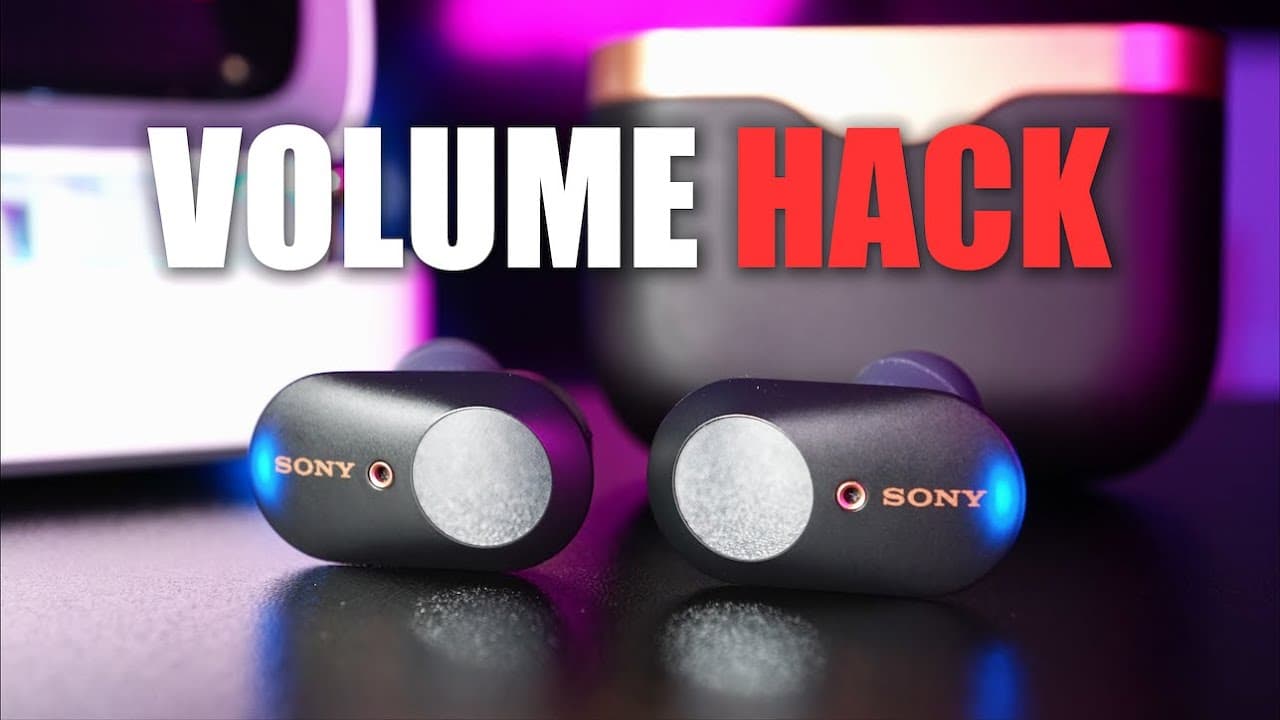
Sony WF-1000XM3 VOLUME HACK - Instantly Make Your XM3 LOUDER
TL;DR
Learn to increase the volume of Sony WF-1000XM3 earbuds using the Sony app.
Transcript
hey guys what's up it's me again and today I'm gonna show you how you can instantly increase the volume level of your sony WF thousand x m3 earbuds now the reason I'm making this video is because I've seen some of you in my comments saying that the XM three-year buds are simply not loud enough now that certainly doesn't apply to me because for me t... Read More
Key Insights
- 👤 Users of Sony WF-1000XM3 earbuds may experience varying volume levels depending on their device type, notably with Android devices.
- ✋ The difference in amplification capabilities between Android and iOS can be as high as 20%, potentially affecting user experience.
- 😀 The Sony Headphones Connect app provides essential tools to users, allowing them to manipulate sound settings for preferred audio output.
- 🥺 Adjusting the equalizer settings can lead to significant differences in audio quality and volume, thus enhancing the listening experience.
- 🔇 While volume adjustments can improve loudness, users must consider that sound signature alterations may occur, affecting their audio enjoyment.
- 💁 The video emphasizes the importance of sharing information with fellow users who may benefit from these volume enhancement techniques.
- 👤 Engaging with the channel through likes and subscriptions can help the creator continue to produce helpful content for users of audio devices.
Install to Summarize YouTube Videos and Get Transcripts
Explore YouTube Video Summarizer or Get YouTube Transcript Extractor
Questions & Answers
Q: Why might some users find Sony WF-1000XM3 earbuds not loud enough?
Users might experience lower volume levels on the Sony WF-1000XM3 earbuds mainly due to the differences in sound amplification between devices. Android devices, in particular, tend to output less volume compared to iOS devices, leading to a noticeable difference in audio levels, sometimes up to 20%.
Q: How can you boost the earbuds' volume on both Android and iOS devices?
To boost the volume, users need to utilize the Sony Headphones Connect app. After pairing the earbuds with their device, they should navigate to the sound tab and use the graphic equalizer settings to raise all frequency volumes to their maximum levels, thus enhancing the overall audio output.
Q: What changes can users expect after adjusting the graphic equalizer for the earbuds?
After adjusting the graphic equalizer, users can expect the earbuds to produce a significantly louder sound. However, this adjustment also modifies the sound signature, meaning the audio may have a different quality or character than what was originally intended when the earbuds were set to their default settings.
Q: Is the volume boost method recommended for casual listeners, or is it more for audiophiles?
While the volume boost method can be beneficial for casual listeners needing increased volume, it also can appeal to audiophiles who want to tweak their listening experience. However, care should be taken since altering the sound signature may affect overall audio fidelity. It's essential to balance loudness with sound quality.
Summary & Key Takeaways
-
This content explains how to enhance the volume level of Sony WF-1000XM3 earbuds, particularly for users on Android devices, which often have lower sound amplification compared to iOS devices.
-
The method involves using the Sony Headphones Connect app, adjusting the graphic equalizer settings to maximize the volume output across all frequencies, effectively resulting in a louder listening experience.
-
While this adjustment increases volume, it also alters the sound signature of the earbuds, meaning that the audio may sound different but louder than before.
Read in Other Languages (beta)
Share This Summary 📚
Summarize YouTube Videos and Get Video Transcripts with 1-Click
Try YouTube Summary with ChatGPT & Claude or YouTube Transcript Generator
Explore More Summaries from Aaron X Loud and Wireless 📚




Summarize YouTube Videos and Get Video Transcripts with 1-Click
Try YouTube Summary with ChatGPT & Claude or YouTube Transcript Generator