How to Create a Square Grid in Google Docs
TL;DR
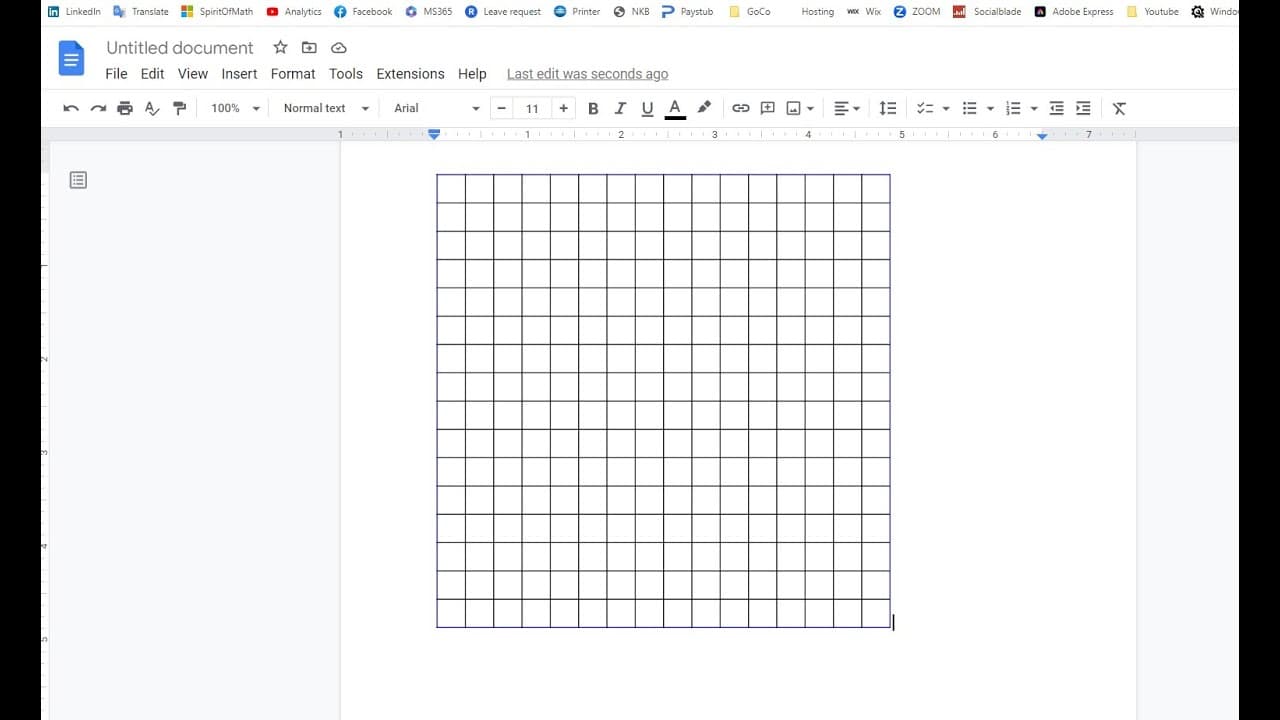
To create a square grid in Google Docs, insert a square using the drawing tool and hold the shift key for perfect proportions. Then, draw straight lines, align them, and group the shapes to form the grid. Duplicating and rotating the grouped lines completes the grid layout, enhancing your document designs.
Transcript
foreign like this in Google Document so to do that let's insert a drawing new one and then first thing we need to do is insert a square so that's a Visa account here we insert a Square here so when you draw Square you'll need the heat shift key and drawing so that's make sure it is square okay so they draw a small square like that if you want to ad... Read More
Key Insights
- 👻 Google Docs offers a drawing tool that allows for the easy integration of shapes within documents, facilitating visually appealing layouts.
- 🎹 Utilizing keyboard shortcuts like Ctrl + D and the shift key enhances efficiency when creating shapes and aligning them for uniformity.
- 👥 Grouping shapes together not only simplifies any future modifications but also helps in maintaining the overall design integrity of the grid.
- 👻 The ability to rotate shapes provides versatility in design, allowing for intricate and structured layouts to be easily constructed.
- 👀 The tutorial emphasizes the need for careful measurement and alignment to achieve a polished final product, ensuring professional-looking documents.
- 👤 The step-by-step approach makes the tutorial accessible for users of varying skill levels, promoting confidence in using Google Docs creatively.
- 🎨 Creating a square grid can be a foundational skill for more advanced document designs, such as tables and organized data presentations.
Install to Summarize YouTube Videos and Get Transcripts
Explore YouTube Video Summarizer or Get YouTube Transcript Extractor
Questions & Answers
Q: What is the first step in creating a square grid in Google Docs?
The first step involves inserting a drawing within Google Docs. To do this, you should select 'Insert' and then 'Drawing.' This opens a new window where you can draw your shapes. The guide emphasizes that when drawing a square, you need to hold down the shift key to maintain the correct proportions.
Q: Why is it necessary to hold the shift key while drawing shapes?
Holding the shift key while drawing is crucial as it ensures that the shape maintains its proportional dimensions. For squares, this is vital to ensure that each side remains equal, creating a perfect geometric figure. This method prevents distortion and maintains the intended design layout, especially when creating grids.
Q: How can you ensure the lines you draw are the same length as the square?
After drawing the square, you can draw a line, making sure to press the shift key for straight lines. The video suggests adjusting the line's length visually or copying the dimensions of the square by duplicating the square's measurements. This ensures consistency across the shapes of your grid.
Q: What keyboard shortcuts are mentioned to facilitate the grid creation?
The video mentions using Ctrl + D to copy and duplicate elements efficiently. This allows users to quickly replicate the lines and shapes needed for the grid without having to redraw them. Such shortcuts streamline the drawing process, making it more efficient and less time-consuming.
Q: What should you do after aligning your shapes?
Once all your lines and squares are aligned properly, the next step is to group them together. This can be done by selecting all the shapes and right-clicking to select the group option. Grouping them ensures that any future adjustments can be made to the entire grid instead of individual lines, saving time and effort.
Q: How do you rotate the duplicated lines?
After duplicating the lines using Ctrl + D, you should click on the 'Action' menu, where you will find the rotate options. By selecting 90 degrees, the duplicated lines will be rotated to create the vertical components of the square grid, complementing the horizontal lines already drawn.
Summary & Key Takeaways
-
The content provides a step-by-step guide on inserting and manipulating shapes in Google Docs to create a square grid, highlighting the importance of holding the shift key.
-
It discusses how to draw a square and lines while ensuring all elements are consistent in size and alignment using keyboard shortcuts for efficiency.
-
Viewers are shown how to group and duplicate shapes, as well as rotate them to complete the grid solution, enhancing their document design skills.
Read in Other Languages (beta)
Share This Summary 📚
Summarize YouTube Videos and Get Video Transcripts with 1-Click
Try YouTube Summary with ChatGPT & Claude or YouTube Transcript Generator
Explore More Summaries from E Micro Tech 📚

Summarize YouTube Videos and Get Video Transcripts with 1-Click
Try YouTube Summary with ChatGPT & Claude or YouTube Transcript Generator