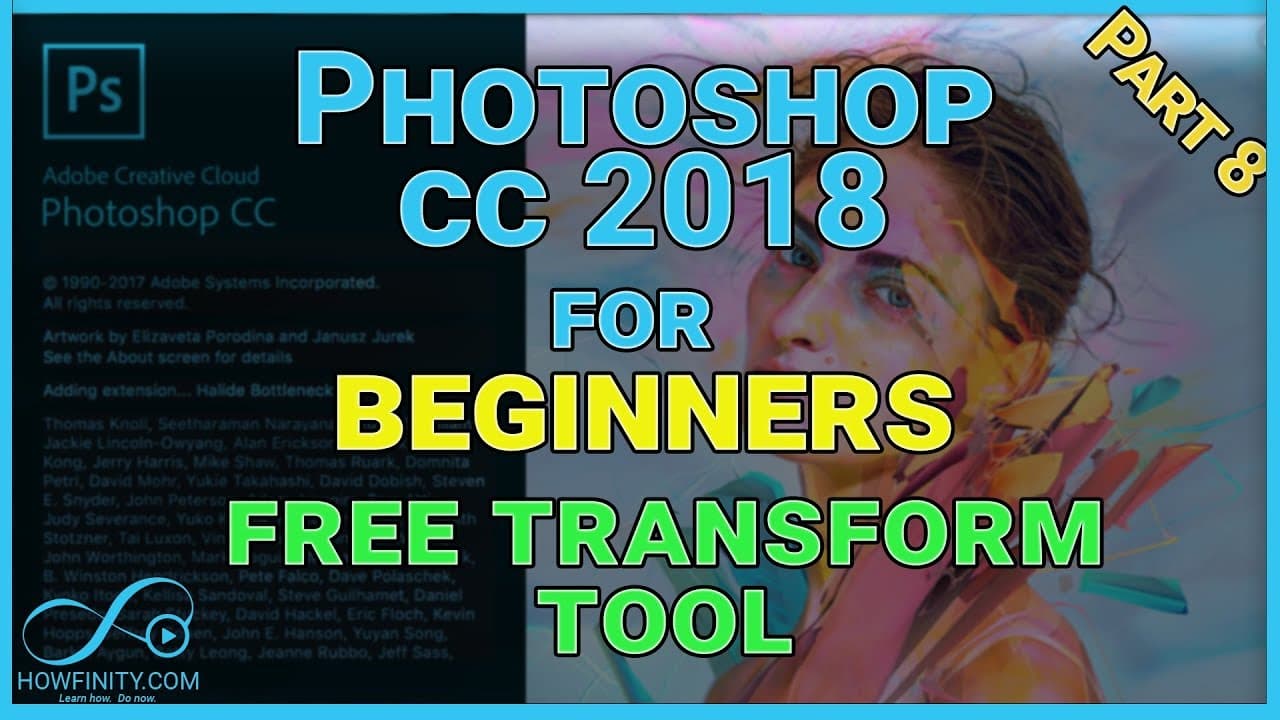
How to Use the Free Transform Tool in Photoshop CC 2018
TL;DR
To use the Free Transform tool in Photoshop CC 2018, unlock your image layer, select it, and press Command + T. This allows you to resize, rotate, skew, and create picture-in-picture effects. Holding the Shift key while scaling prevents distortion, and manipulating opacity enhances visual appeal.
Transcript
In this Photoshop video, I wanted to show you how you could transform an image, how to scale it how to rotate it how to resize it and I'm gonna show you that with this image here. Now one thing to know is if you start with an image I just opened this in Photoshop, and it usually starts like this. It's locked and we want to change this to a layer al... Read More
Key Insights
- 🔓 Unlocking a locked image in Photoshop is as simple as clicking on the lock icon or renaming the layer.
- 🛟 Duplicating a layer serves as a safeguard, allowing for destructive edits while preserving the original image.
- 🤩 Holding the shift key during scaling prevents image distortion.
- 🔨 The free transform tool is a versatile tool for scaling, rotating, skewing, and flipping images.
- 🖼️ Adjusting opacity and layer styles can create impressive picture-in-picture effects.
- 🪈 Manipulating layer order and using blend modes can enhance the visual impact of composite images.
- 🥶 The free transform tool is handy for quickly resizing and repositioning images.
Install to Summarize YouTube Videos and Get Transcripts
Explore YouTube Video Summarizer or Get YouTube Transcript Extractor
Questions & Answers
Q: How can I unlock a locked image in Photoshop?
To unlock a locked image in Photoshop, simply click on the lock icon or double-click on the layer and rename it, which will convert it into a layer.
Q: What is the purpose of duplicating a layer?
Duplicating a layer serves as a backup, allowing you to make destructive changes to one layer while preserving the original layer for reference or future modifications.
Q: How can I scale an image without distorting it?
Hold the shift key while using the free transform tool to scale an image, which will maintain the aspect ratio and prevent distortion.
Q: How can I create a picture-in-picture effect?
Duplicate the image layer, resize the duplicate layer using the free transform tool, adjust opacity, and apply layer styles, such as strokes or shadows, to the duplicate layer.
Summary & Key Takeaways
-
The video demonstrates how to unlock a locked image and convert it into a layer in Photoshop.
-
The free transform tool allows for easy scaling, rotating, and skewing of images without distortion.
-
Manipulating opacity and layer styles can create stunning picture-in-picture effects.
Read in Other Languages (beta)
Share This Summary 📚
Summarize YouTube Videos and Get Video Transcripts with 1-Click
Try YouTube Summary with ChatGPT & Claude or YouTube Transcript Generator
Explore More Summaries from Howfinity 📚





Summarize YouTube Videos and Get Video Transcripts with 1-Click
Try YouTube Summary with ChatGPT & Claude or YouTube Transcript Generator