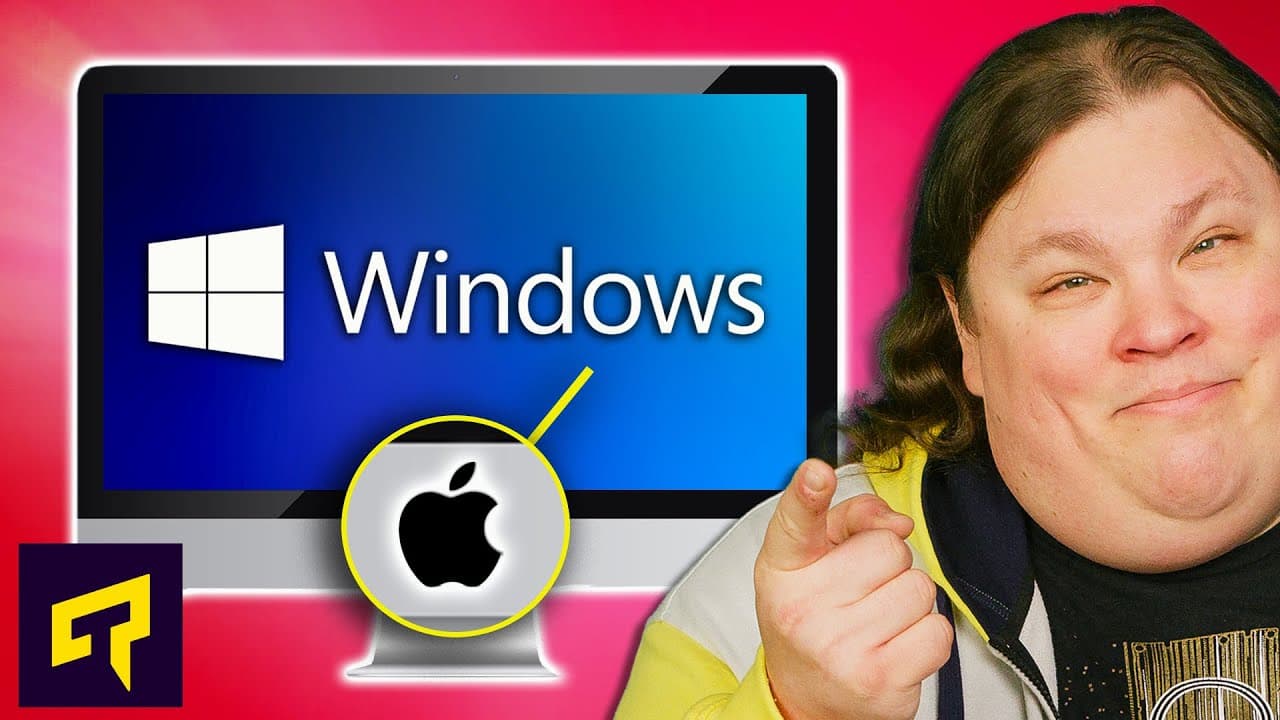
Your Mac Can Run Windows!
TL;DR
Learn how to install Windows on your Mac to run Windows-exclusive programs, accommodate user preferences, or improve gaming performance.
Transcript
installing Mac OS on a PC or building a Hackintosh is something that's been discussed in modern forms for years even though it's officially unsupported and has made the powers that be at Apple very upset I'm very happy about that but what if you're facing the opposite situation where you own a totally legit Mac and you just want to install Windows ... Read More
Key Insights
- 💻 Installing Mac OS on a PC (Hackintosh) has been a controversial topic, but installing Windows on a legitimate Mac is straightforward and useful for various reasons.
- 💪 Reasons to install Windows on a Mac include running Windows-specific programs, sharing a computer with a Windows user, or playing games that are not easily compatible with Mac.
- 🖥️ Running Windows inside a virtual machine in Mac OS can lead to performance issues, so installing a clean version of Windows is recommended for older Intel-based Macs.
- 🔒 Intel-based Macs may face issues running Windows 11 due to lack of TPM 2.0 support, but workarounds exist. Windows 10 should work fine on these Macs.
- 💡 Before installing Windows on a Mac, ensure Mac OS is up to date and secure boot is turned on. Download Windows as an ISO file from the Microsoft site.
- 🧭 Open Bootcamp Assistant in the Applications > Utilities folder, select the downloaded ISO file, choose the partition size, and install Windows.
- ⚙️ After the installation, use the Windows version of Bootcamp to manage the dual OS setup. To switch between Mac OS and Windows, hold down the option key during startup.
- 🍎 For Apple silicon Macs, the Bootcamp method won't work, but Parallels Desktop software can be used to virtualize Windows. Performance may not be as good as native, but it can run Windows 11 and support games. Make sure to research compatibility before purchasing an expensive Mac.
Install to Summarize YouTube Videos and Get Transcripts
Explore YouTube Video Summarizer or Get YouTube Transcript Extractor
Questions & Answers
Q: Why would someone want to install Windows on their Mac?
There are several reasons why someone may want to install Windows on their Mac. They may need to run a windows program that has no Mac equivalent, want to accommodate user preferences for Windows, or improve gaming performance on a Mac.
Q: How can you install a clean version of Windows on an Intel-based Mac?
To install Windows on an Intel-based Mac, you need to download Windows from the Microsoft site, save it as an ISO file, open Boot Camp Assistant on your Mac, select the ISO file, choose the size for your Windows partition, and complete the Windows setup.
Q: Can you install Windows on a newer Apple silicon Mac?
You can use virtualization software Parallels Desktop to run Windows on a newer Apple silicon Mac, but it is not as efficient or performant as running Windows natively. You will need to use the arm version of Windows and may not be able to run every program you want.
Q: Can you run Windows 11 on a Mac?
Running Windows 11 on a Mac may be challenging for Intel-based Macs that lack TPM 2.0 support. However, you can work around this and still use Windows 10 without any issues. On newer Apple silicon Macs, you can install the arm version of Windows 11 using software like Parallels Desktop.
Summary & Key Takeaways
-
Installing Windows on a Mac allows you to run Windows-only programs or games that may not have Mac equivalents.
-
On an Intel-based Mac, you can simply install a clean version of Windows to run natively on your Mac's hardware.
-
For newer Apple silicon Macs, you can use software like Parallels Desktop to virtualize Windows and achieve a performance closer to running it natively.
Read in Other Languages (beta)
Share This Summary 📚
Summarize YouTube Videos and Get Video Transcripts with 1-Click
Try YouTube Summary with ChatGPT & Claude or YouTube Transcript Generator
Explore More Summaries from Techquickie 📚





Summarize YouTube Videos and Get Video Transcripts with 1-Click
Try YouTube Summary with ChatGPT & Claude or YouTube Transcript Generator