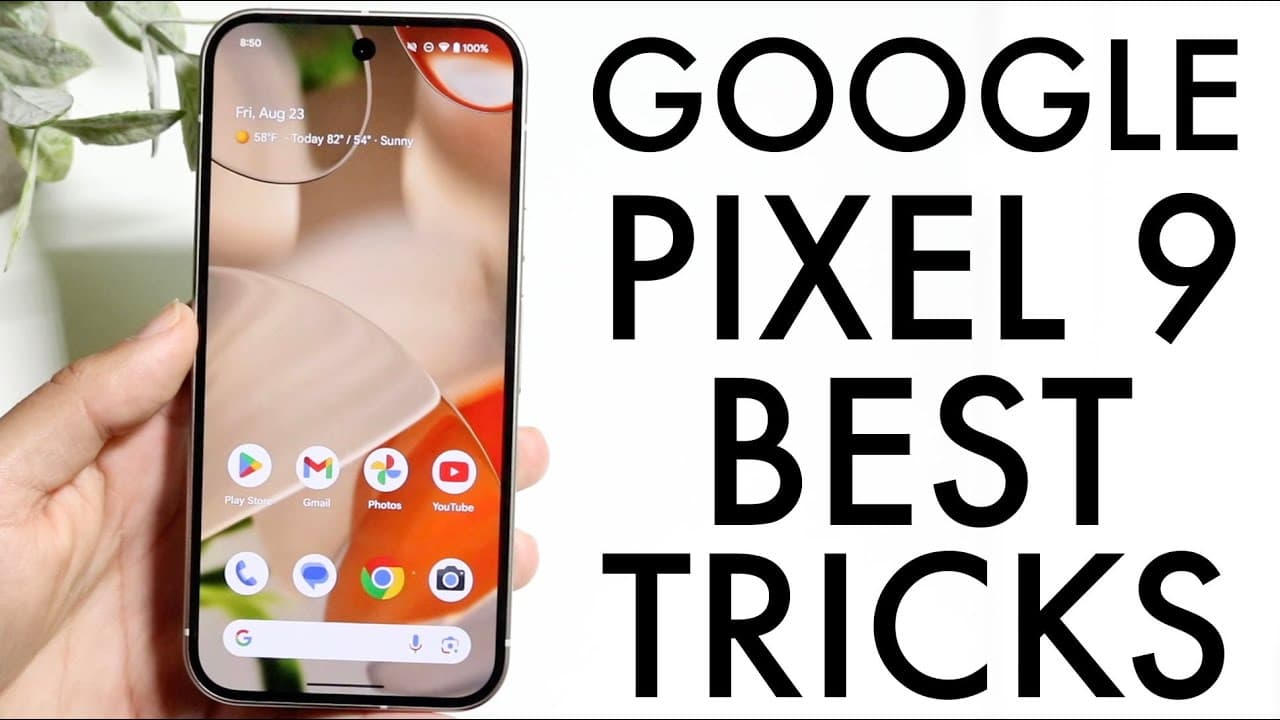
Google Pixel 9: BEST Tricks & Tips!
TL;DR
Discover essential tips for enhancing your Google Pixel 9 experience.
Transcript
well everyone it's time for us to go and take a look at the Google pixel 9 and look at some of my favorite tricks and tips that you should definitely go and check out inside of this particular phone now the very first thing I'd recommend kind of checking out and the first trick I'd recommend doing is actually within the lock screen so I talk about ... Read More
Key Insights
- 😑 Customizing the lock screen on the Pixel 9 allows for personal expression and improved aesthetics, enhancing user engagement with the device.
- ♊ Utilizing the Google Gemini AI assistant can streamline daily tasks and increase efficiency, highlighting the potential of AI integration in personal technology.
- ❓ Enabling the 120 Hz display is crucial for a smoother experience, as it drastically improves responsiveness and visual fluidity during interactions.
- 💝 Regular system updates can boost performance, fix bugs, and ensure access to the latest features, making it an essential practice for maintaining the device.
- 👥 The new "Ad Me" feature enhances photography possibilities, enabling users to creatively capture group shots without needing a separate photographer.
- 🆓 Gesture navigation can significantly alter how users interact with the device, offering a modern, button-free way to navigate through applications and menus.
- 🕳️ Dark mode can conserve battery life and reduce the risk of OLED screen burn-in, offering a practical choice for display settings.
Install to Summarize YouTube Videos and Get Transcripts
Explore YouTube Video Summarizer or Get YouTube Transcript Extractor
Questions & Answers
Q: How can I customize my lock screen on the Google Pixel 9?
To customize your lock screen on the Google Pixel 9, hold down on an empty spot on the lock screen. A "Customize Lock Screen" button will appear at the top or bottom; tap it to access various customization options including fonts, accent colors, and wallpapers for a personalized display.
Q: What is Google Gemini and how do I access it?
Google Gemini is an integrated AI assistant feature on the Pixel 9. You can access it by holding down the side button on the device. It functions as a multi-tasking assistant, enabling users to perform actions like writing notes and managing playlists, enhancing productivity with voice or text commands.
Q: Why is it important to enable the 120 Hz display?
Enabling the 120 Hz display on the Google Pixel 9 significantly enhances the user experience by providing smoother scrolling and more fluid animations compared to lower refresh rates. To enable it, access Settings, navigate to Display, and look for the "Smooth Display" option to turn it on.
Q: How do I update my Google Pixel 9?
To update your Google Pixel 9, open the Settings app, scroll down to the "System" section, and tap on it. Then, select "Software Updates" and click "System Update." This process ensures that your phone has the latest features and bug fixes for optimal functionality.
Q: What is the "Ad Me" camera feature, and how does it work?
The "Ad Me" camera feature on the Pixel 9 allows users to add themselves into photos by taking a sequential series of images. The first photo captures the background, while additional photos can be added later. The phone's software then merges these images to produce a cohesive shot.
Q: How can I adjust gesture navigation on my Pixel 9?
To adjust gesture navigation, go to Settings, scroll down to "System," then select "Gestures." Here, you can customize various actions and choose between gesture navigation or traditional three-button navigation, allowing you to tailor how you interact with your device.
Summary & Key Takeaways
-
Personalization of the lock screen on the Google Pixel 9 can greatly enhance user experience. Users can customize fonts, accent colors, and wallpapers for a unique visual style.
-
The Google Gemini AI assistant is a built-in feature that facilitates users in various tasks, such as creating playlists and managing daily activities, enhancing the overall functionality of the phone.
-
Users should enable the 120 Hz display for smoother visuals and regularly update their systems to ensure optimal performance and access to new features and fixes.
Read in Other Languages (beta)
Share This Summary 📚
Summarize YouTube Videos and Get Video Transcripts with 1-Click
Try YouTube Summary with ChatGPT & Claude or YouTube Transcript Generator
Explore More Summaries from Simple Alpaca 📚


Summarize YouTube Videos and Get Video Transcripts with 1-Click
Try YouTube Summary with ChatGPT & Claude or YouTube Transcript Generator