How to Save Web Pages with Glasp Highlights as a PDF

Sep 21, 2025
3 min read
117 views

Have you ever wanted to save a web page with your Glasp highlights as a PDF? ✨ When reading articles, blogs, or research papers online, highlighting key sentences helps you capture insights—but sometimes you also need a shareable or offline-friendly PDF version of those highlights.
With Glasp, you can highlight important parts of any web page and export the page with your highlights included as a PDF. This is useful for offline reading, personal archiving, academic reference, or sharing annotated pages with teammates, students, or collaborators.
In this tutorial, you’ll learn step by step how to save a web page with Glasp highlights as a PDF file. By the end, you’ll know how to turn your highlighted web content into a portable document you can store, share, and revisit anytime. Glasp: PDF Highlighter.
Save a web page with highlights in a PDF file (YouTube)
Step 1: Open any article and highlight sentences
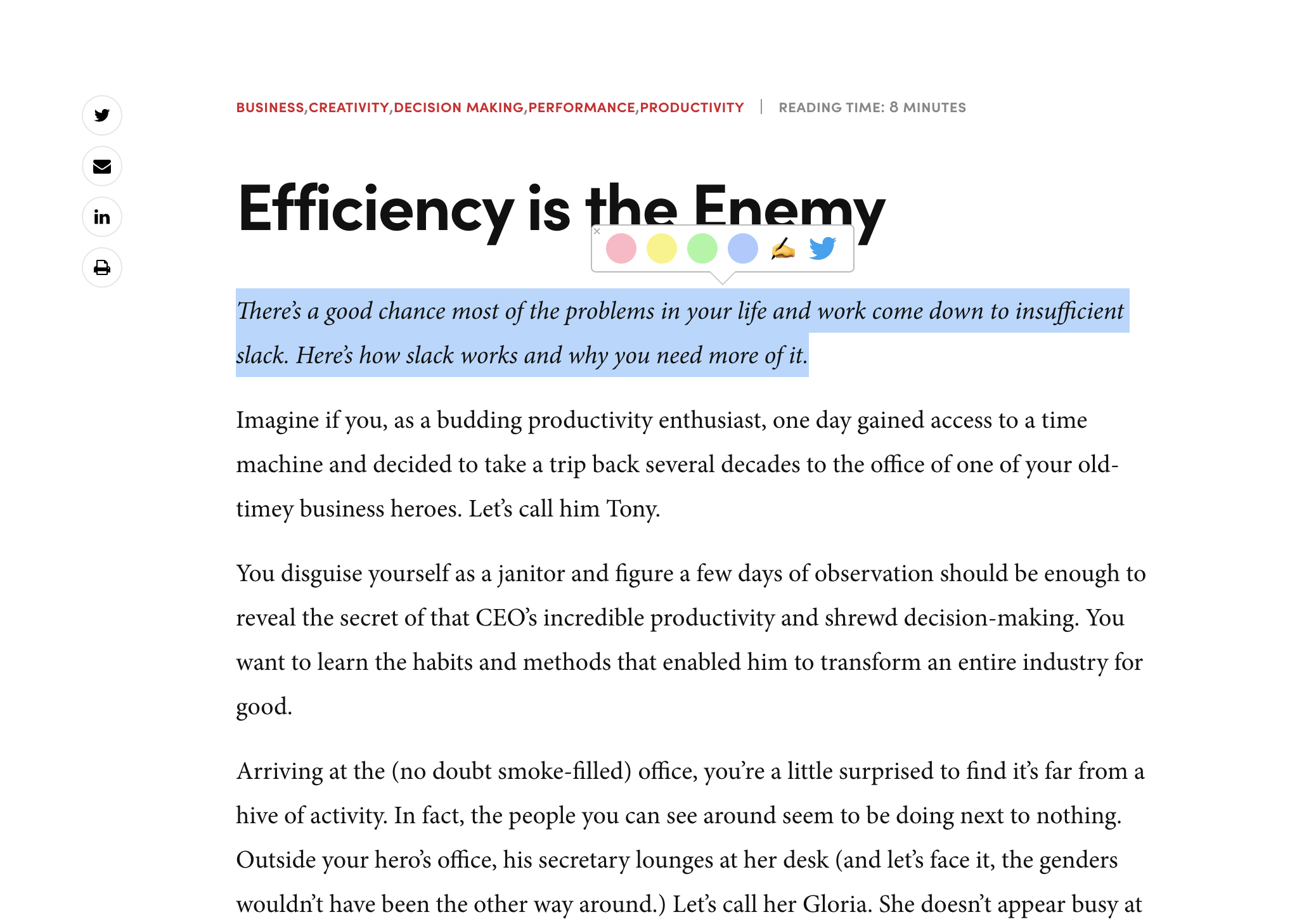
Please open any article that you'd like to highlight and save it as a PDF. Then, select a sentence in the article. You can see a popup with a color palette showing up. So, please click any color you'd like to highlight.
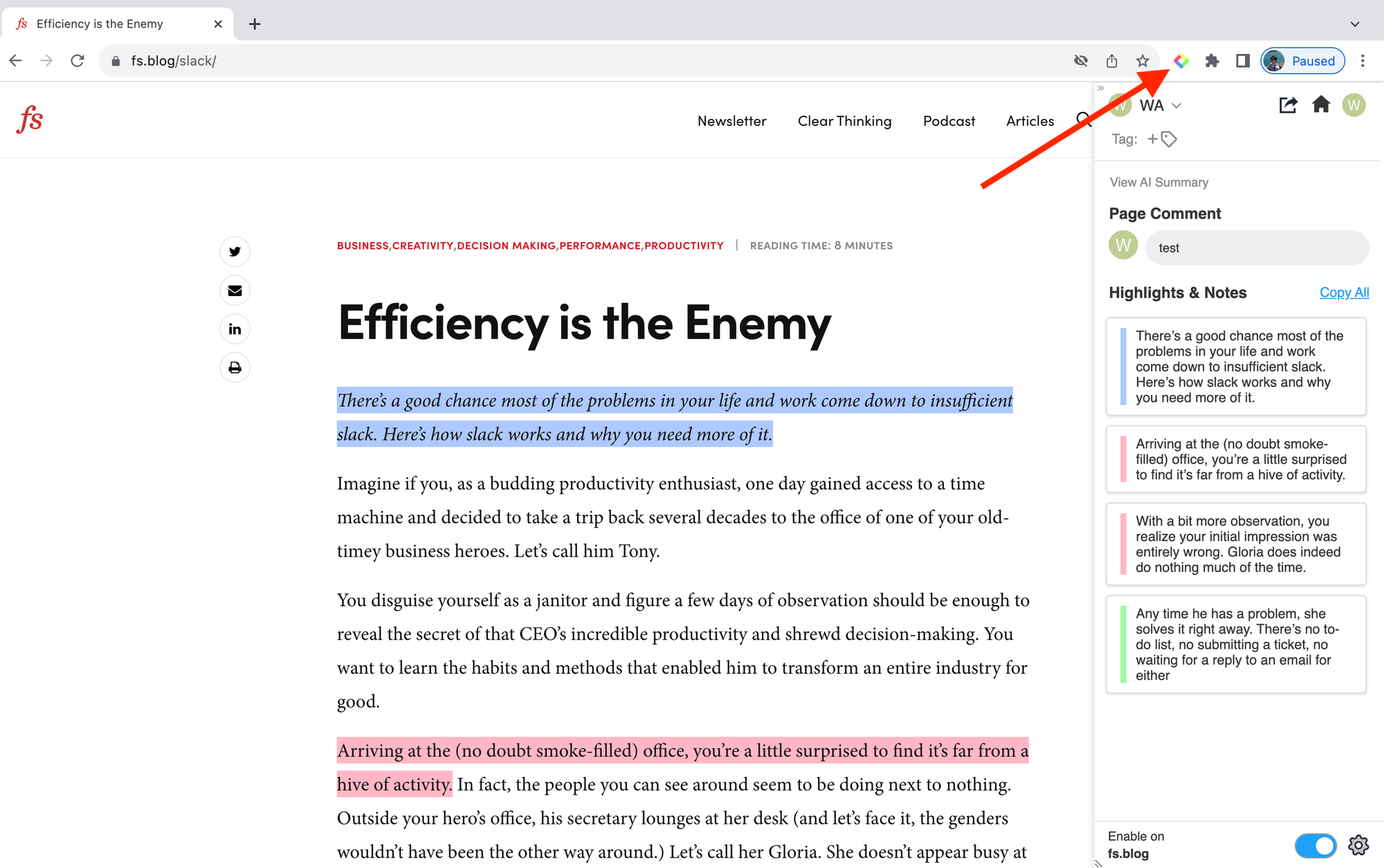
If you can't highlight the sentence, please click the Glasp icon on the toolbar or refresh the page. Sometimes, log-in or page-refresh doesn't work. If you've successfully logged in, you can see the Glasp sidebar below.
Step 2: Print out the web page with highlights as a PDF
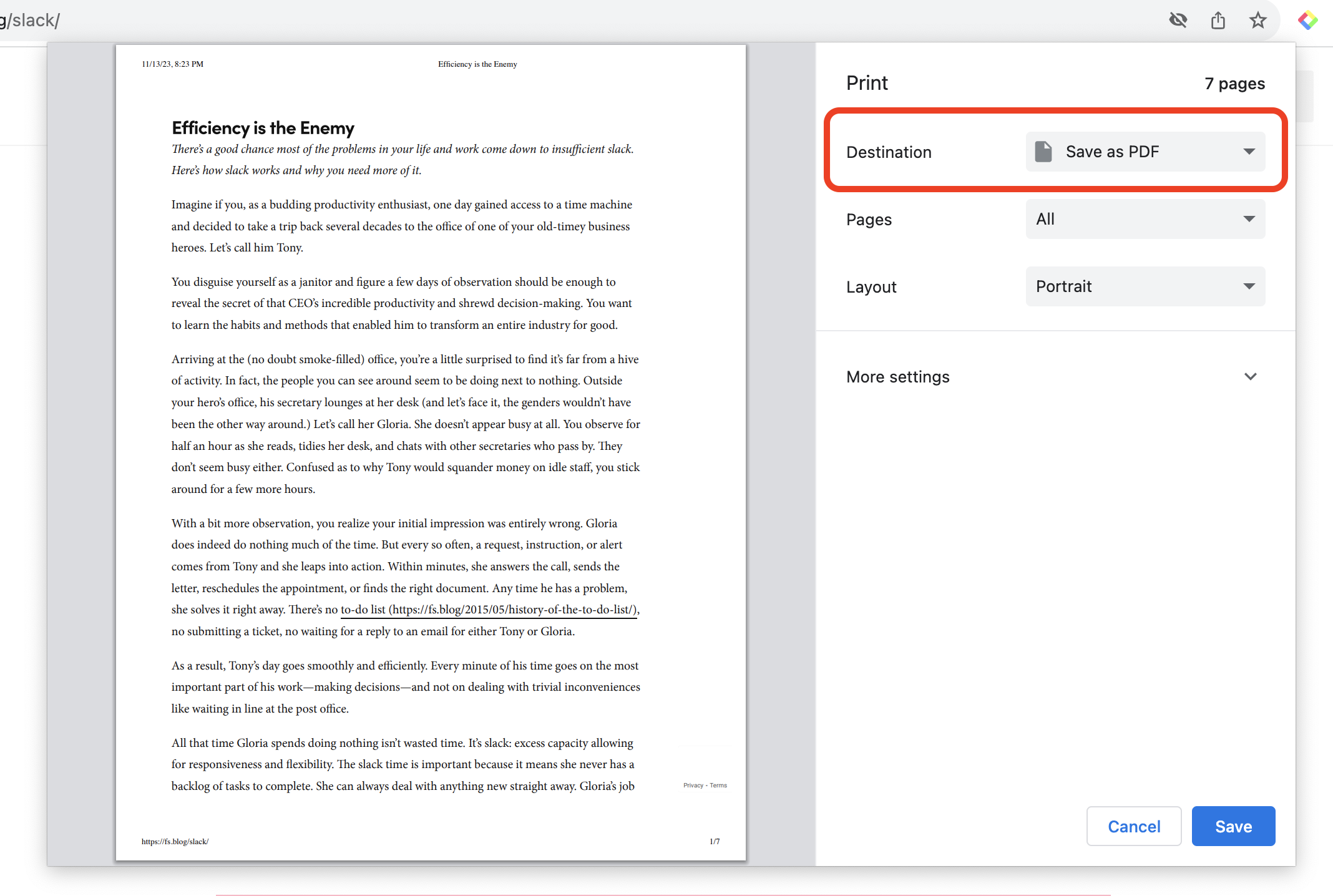
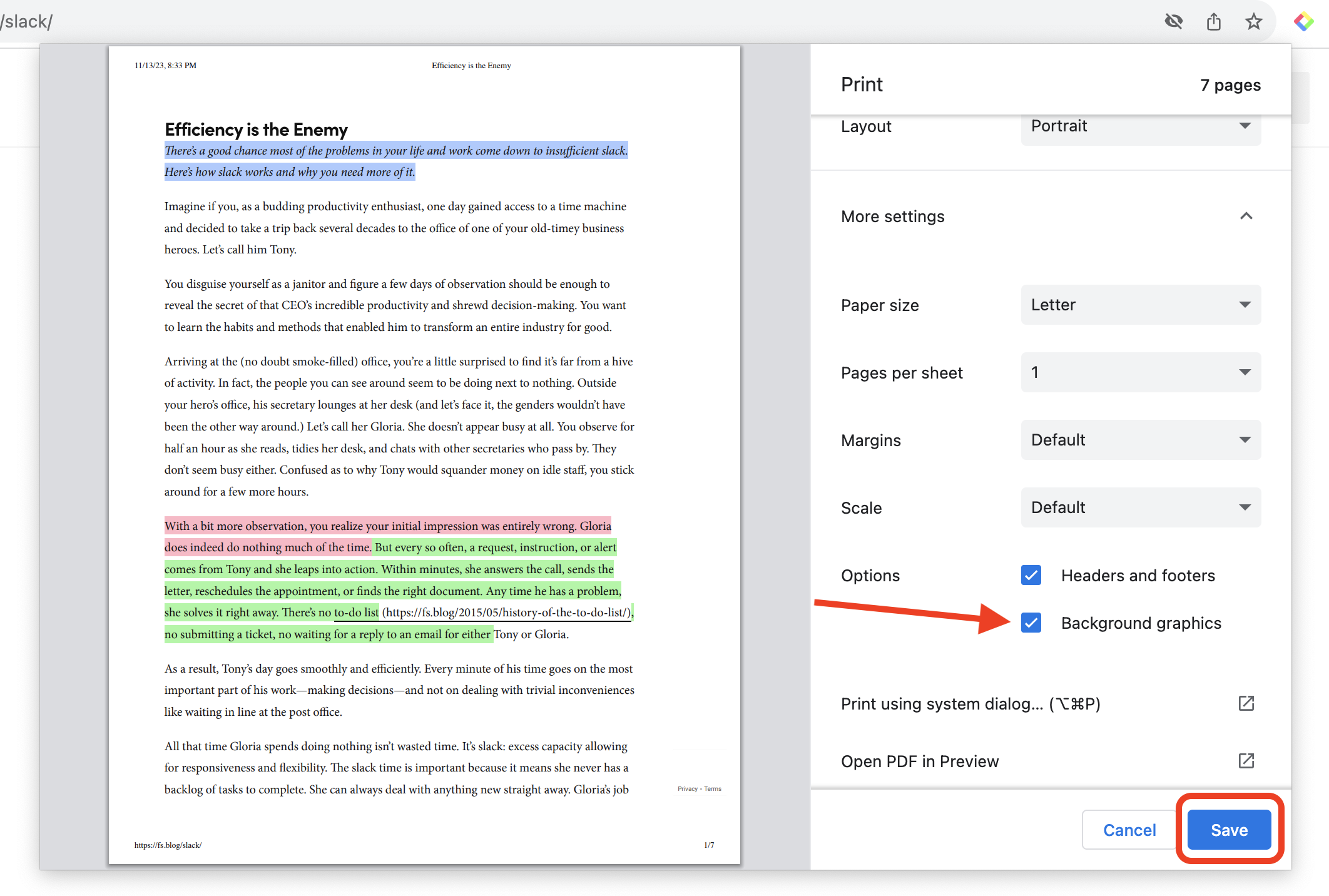
After you've highlighted the web page, you can save it as a PDF. To do that, please click Command + P for Mac and Windows Logo Key + PrtScn or Fn + Windows logo key + Space Bar for Windows on the keyboard. It shows a modal to print out the page.
Please select Save as PDF on the modal.
Next, please click More settings on the modal.
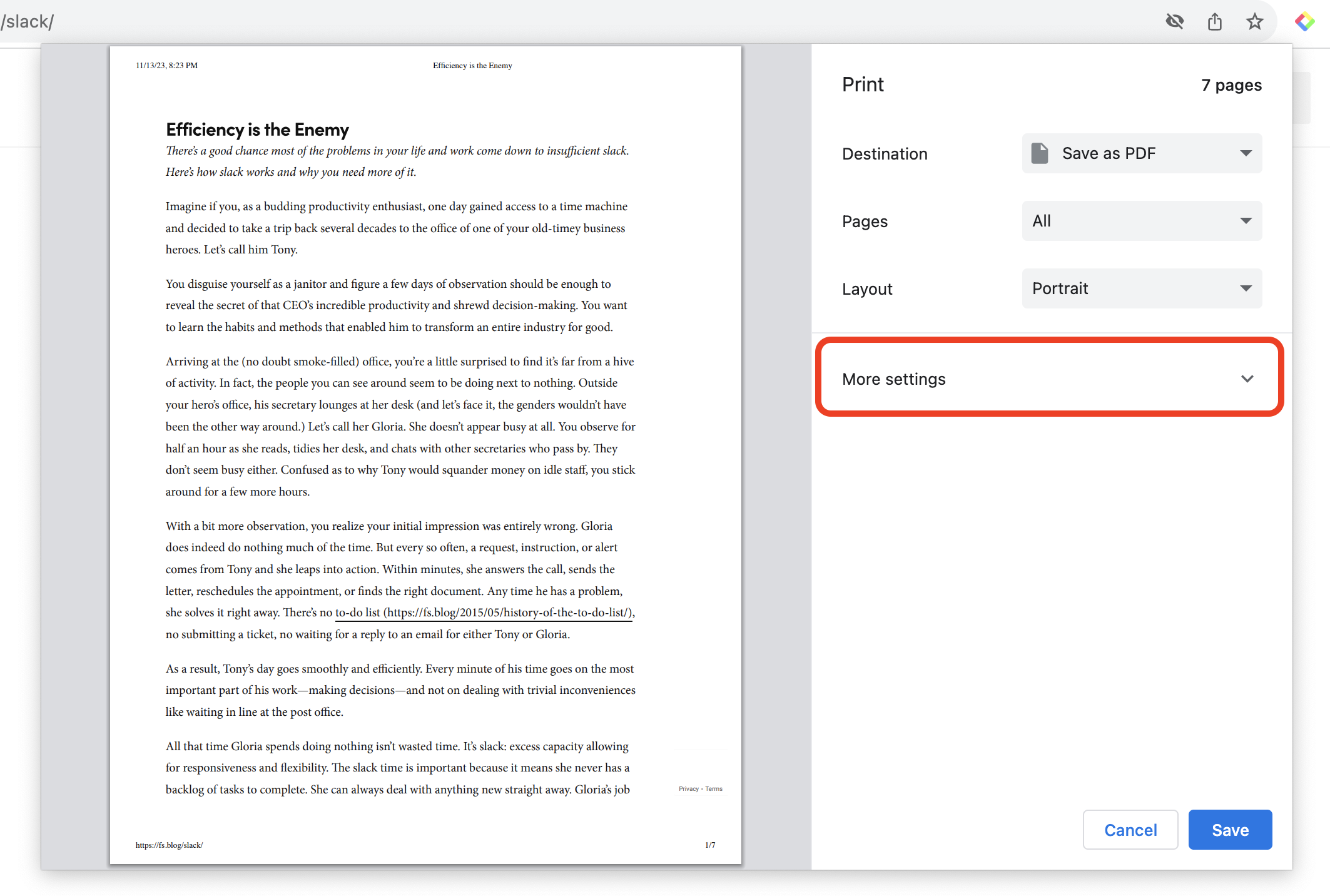
Then, you can see a checkbox Background graphics in the Options section, so please click it. You can see sentences highlighted on the preview page. Then, please click the Save button to save it.
Step 3: Check the PDF file
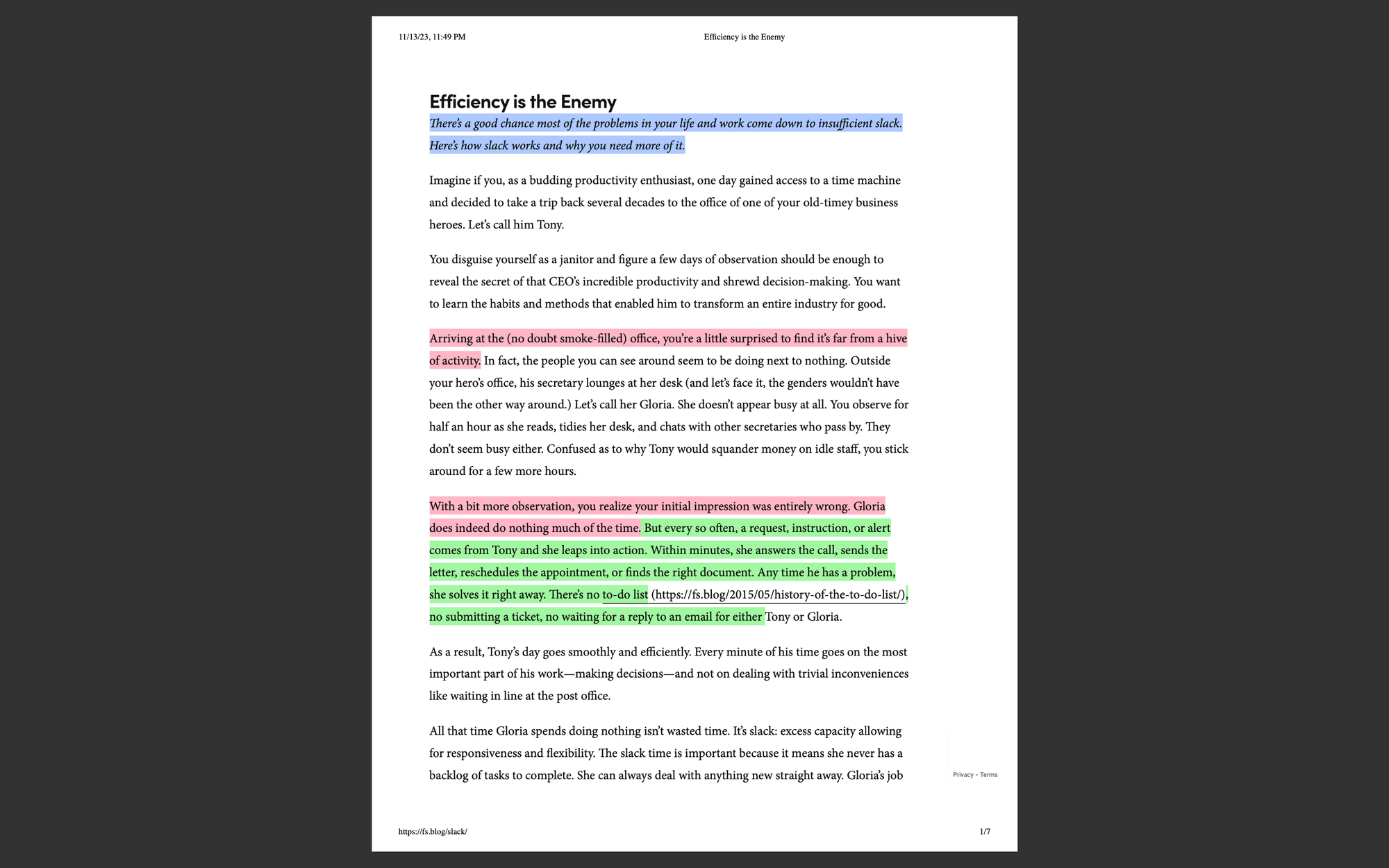
Once you've saved the PDF file, check if it's saved as you expected. Open the PDF file you saved in the local folder.
On my side, the PDF file with highlights is shown like this.
If you'd like to highlight a PDF with Glasp, please check the tutorial below.
👉 How to Highlight a PDF on Chrome
FAQs
Q. Can I save any web page with Glasp highlights as a PDF?
Yes. As long as you can highlight the page with Glasp, you can use the print-to-PDF function on your browser to save it with highlights included.
Q. Do the highlights and colors appear in the saved PDF?
Yes. To make sure your highlights appear correctly, select Background graphics in the print settings before saving as PDF.
Q. Can I highlight inside the PDF file after exporting the web page?
Yes. Once you export the page as a PDF, you can still use Glasp to highlight it if it’s a web-hosted PDF. For local PDFs, please upload them into Glasp first.
Q. Is there a way to export multiple highlighted pages into one PDF?
Not directly. Currently, you need to save each highlighted page as a PDF individually. If you’d like to merge them, you can use a PDF merging tool afterward.
Q. Are my saved PDFs private?
Yes. Once saved locally, the PDFs are stored only on your device. Glasp doesn’t upload or share them unless you choose to.
Before you leave
If you have any questions, please refer to the FAQ or contact us.
See you next time,
Glasp team