How to Export Glasp Highlights with GitHub Actions (Free, No Server)

Feb 22, 2026
5 min read
3 views

Glasp Export is a free GitHub Actions template that automatically sends your Glasp highlights to Slack, Notion, Airtable, or Google Sheets on a daily schedule. No server or coding skills required — just add your API keys as GitHub Secrets and it runs automatically.
You can enable multiple destinations at the same time. For example, send new highlights to Slack for daily review and to Notion for long-term storage — all from a single setup.
What Is Glasp Export?
Glasp Export is an open-source GitHub Actions template that connects your Glasp account to your favorite productivity tools. It fetches your latest highlights via the Glasp API and pushes them to whichever destinations you configure.
Supported destinations:
Slack — Highlights posted to a channel with rich formatting and thumbnails
Google Sheets — Highlights appended as rows — one highlight per row
Airtable — Highlights added as records in a table
Notion — One page per article, with highlights as Quote blocks inside
Why GitHub Actions instead of Zapier or n8n?
Completely free (GitHub Actions is free for public and private repos up to 2,000 minutes/month)
No third-party automation account needed
Runs on a schedule you control
Open source — you own the code
How to Export Glasp Highlights with GitHub Actions
Step 1: Create Your Repo from the Template
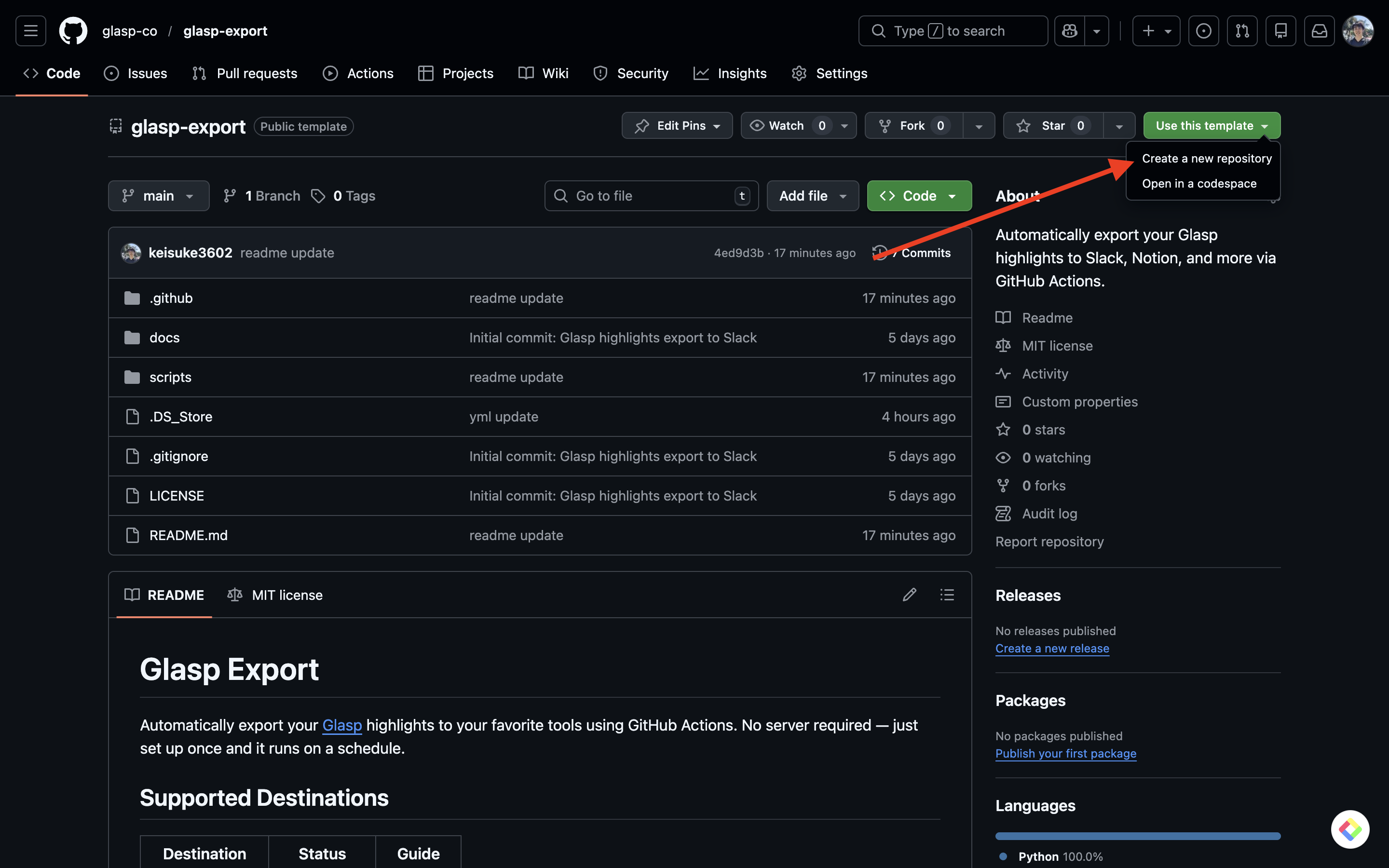
Click "Use this template" → "Create a new repository"
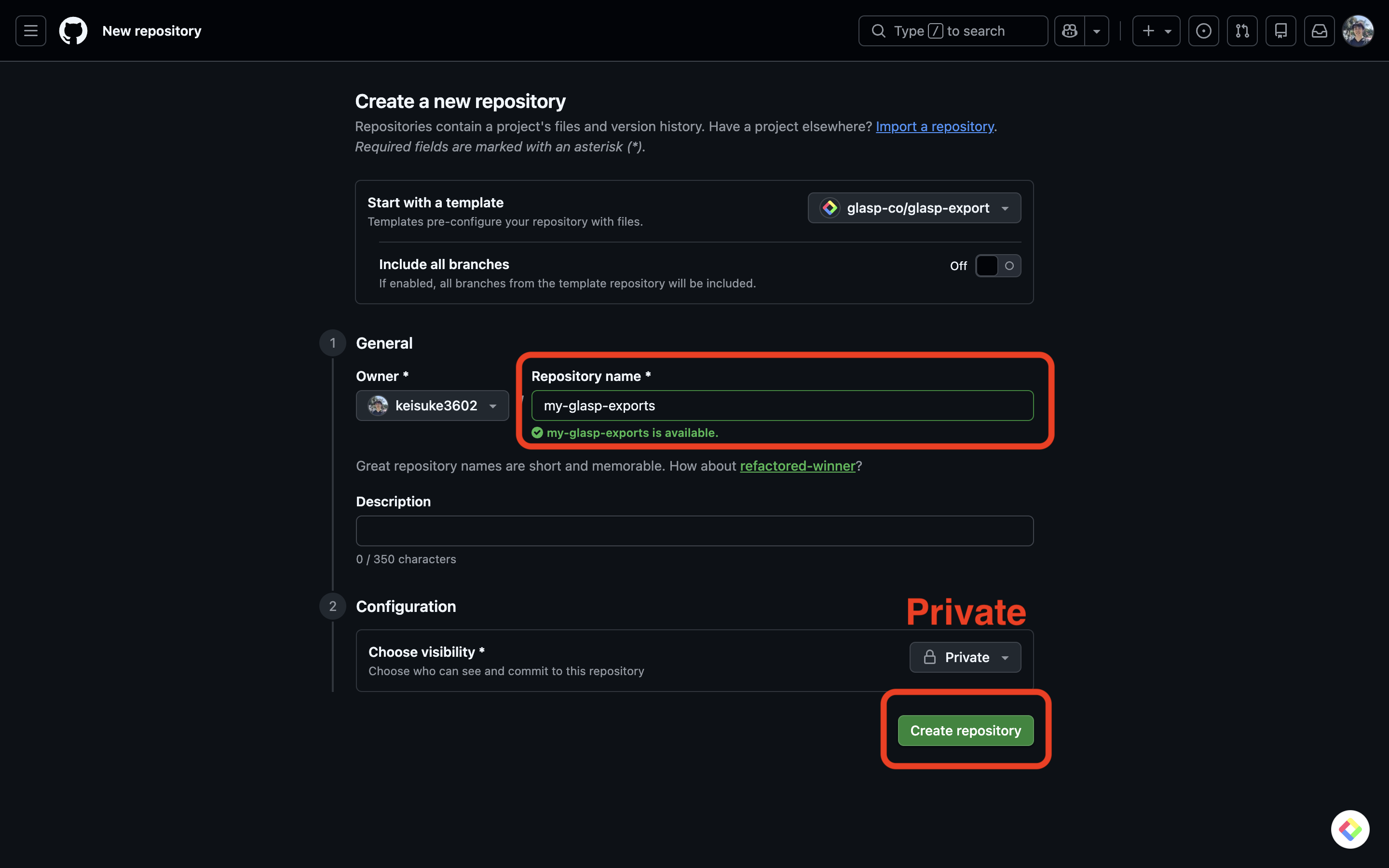
Give it a name (e.g.,
my-glasp-export) and set it to Private
Step 2: Add Your Glasp Access Token
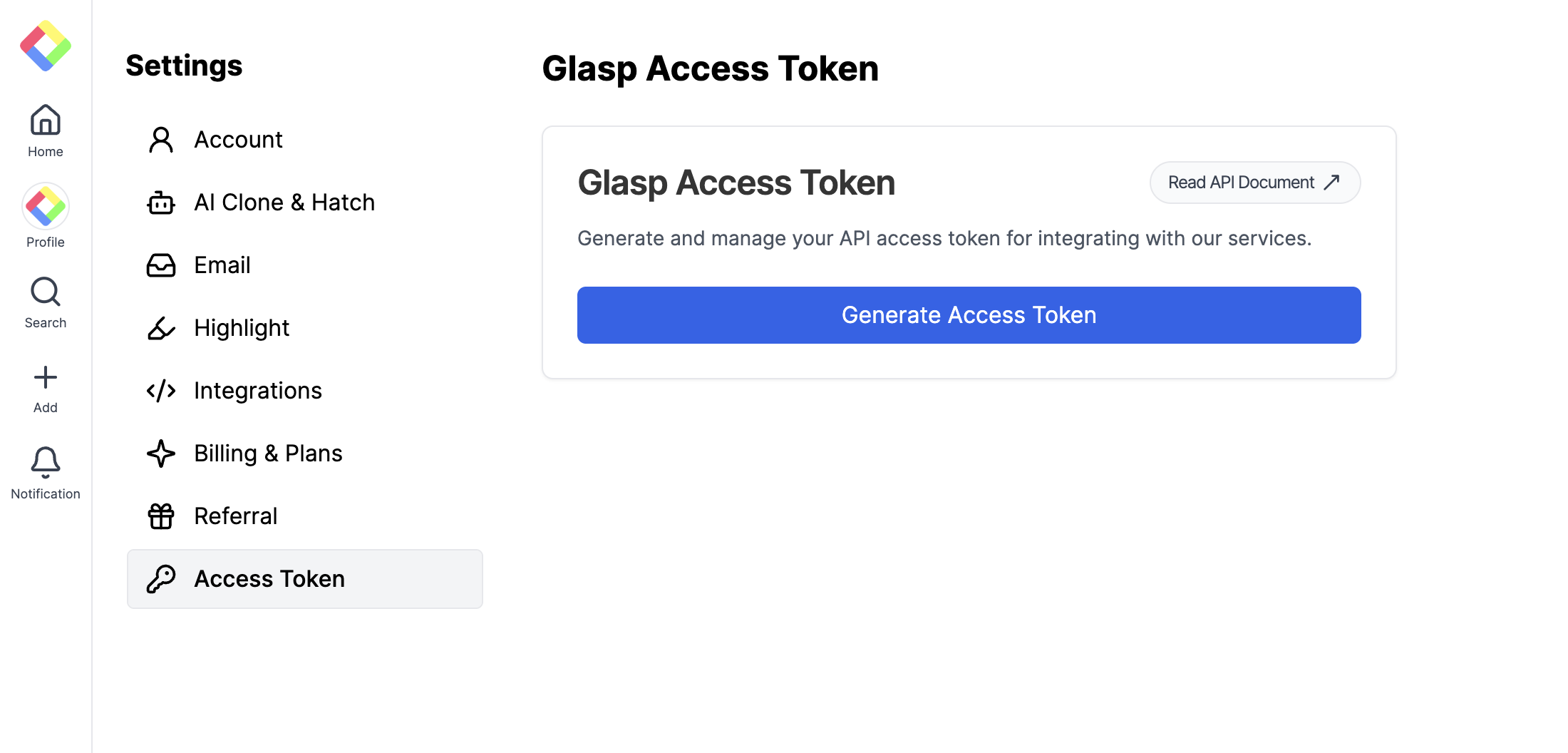
Go to glasp.co/settings/access_token and copy your token
In your new repo, go to Settings → Secrets and variables → Actions → New repository secret
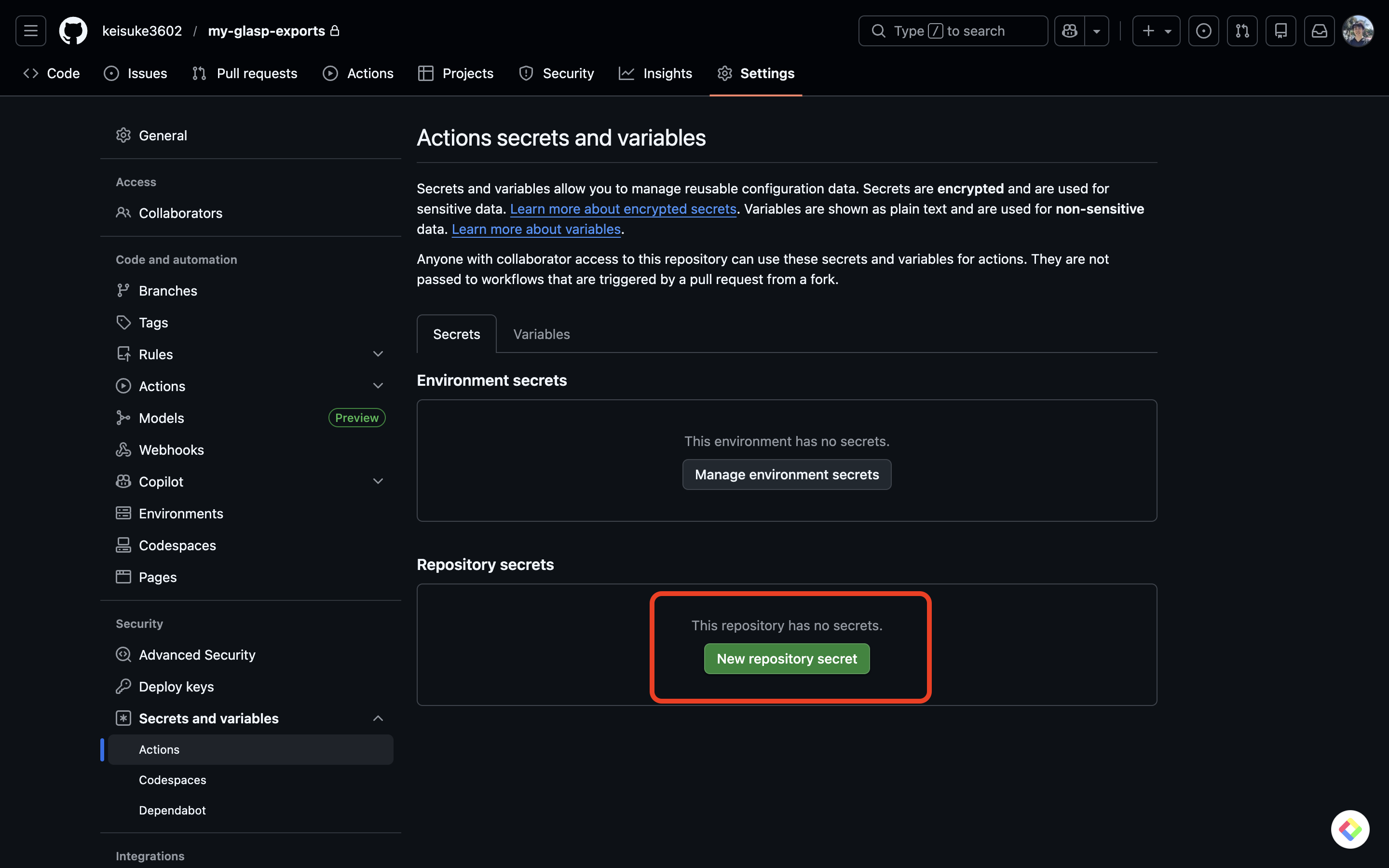
Name:
GLASP_ACCESS_TOKEN/ Value: your token
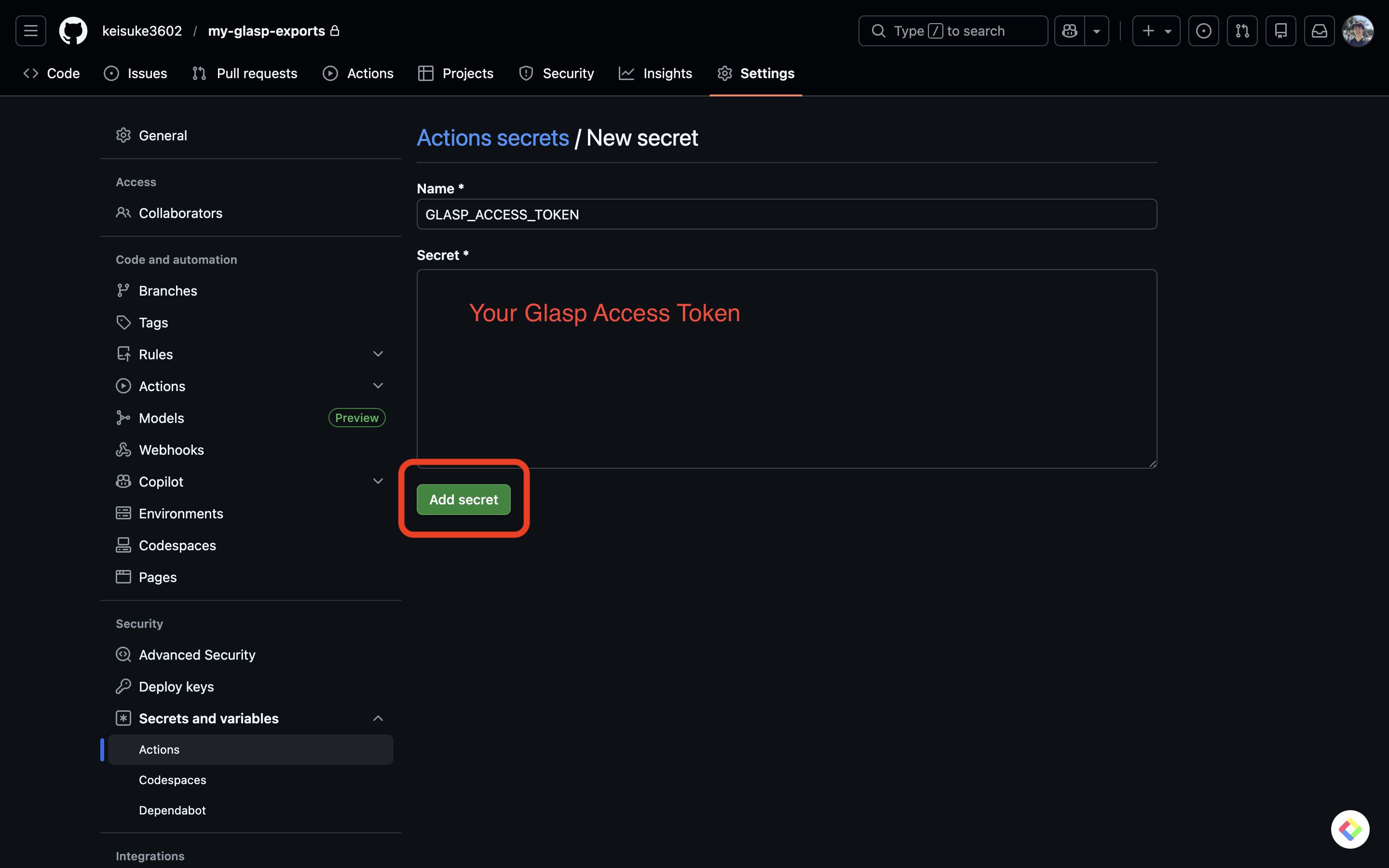
This secret is required for all destinations.
Step 3: Set Up Your Destination(s)
How to Export Glasp Highlights to Slack
Go to api.slack.com/apps → Create New App → From scratch
Enable Incoming Webhooks → Add New Webhook to Workspace → select a channel
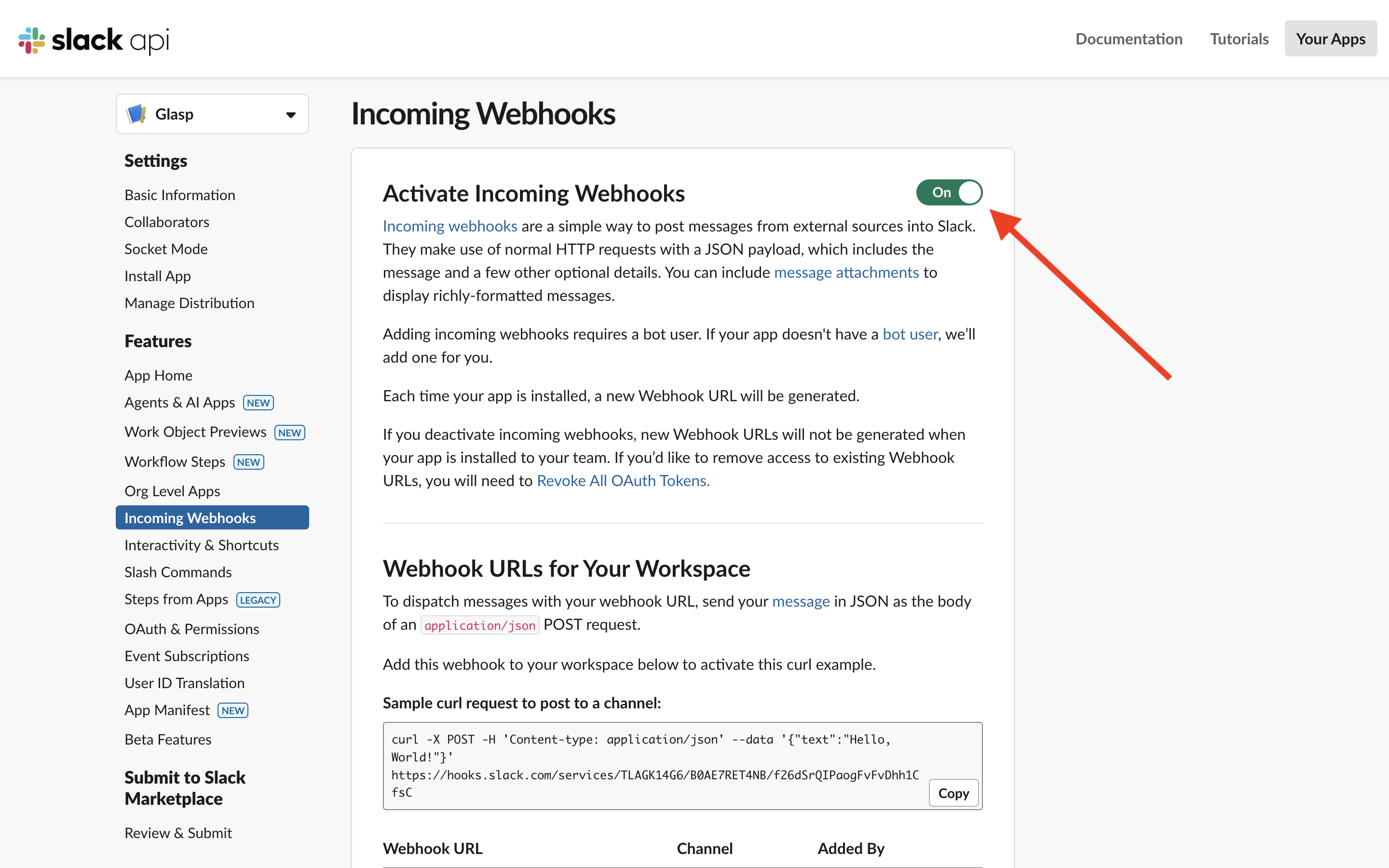
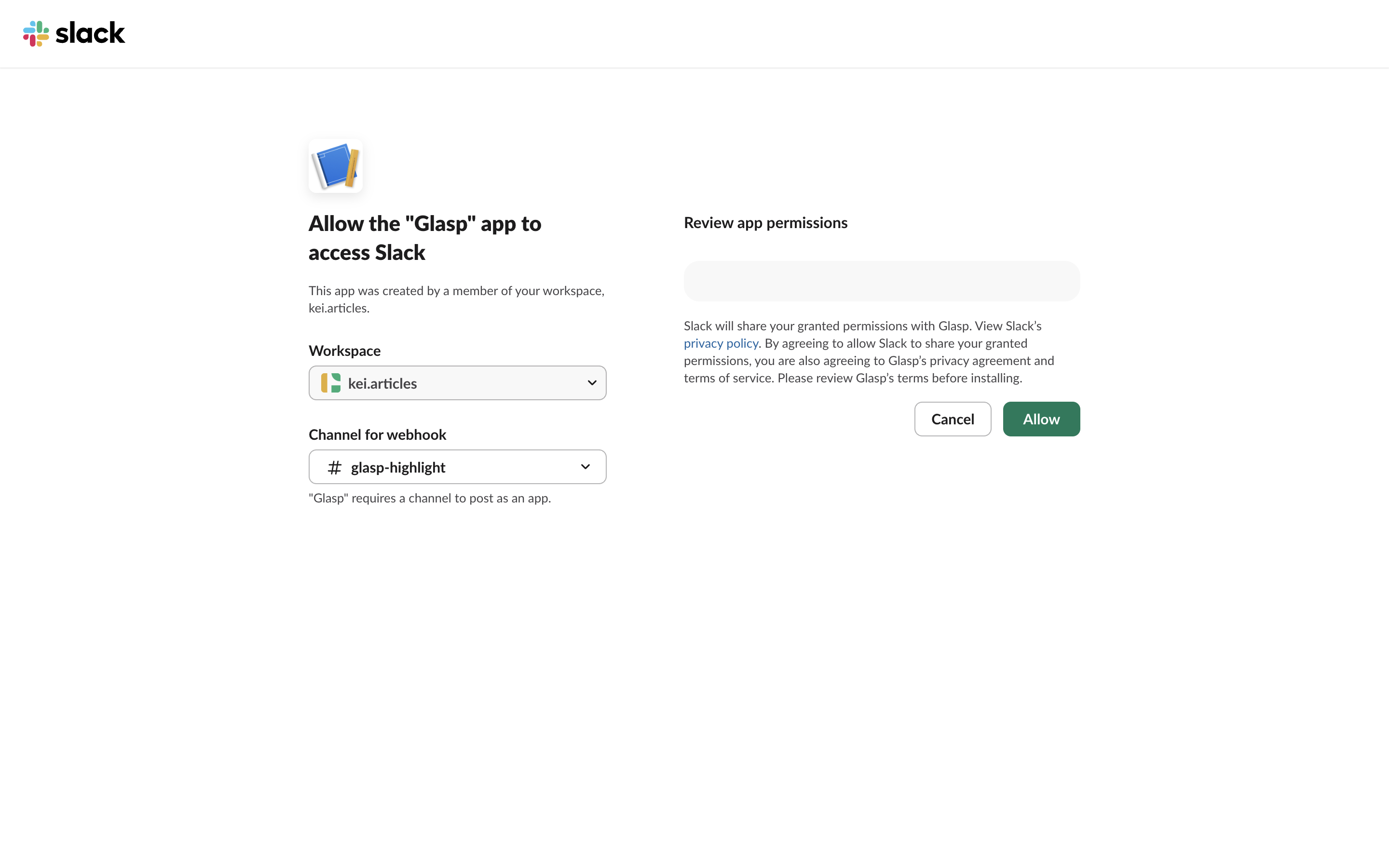
Copy the webhook URL
Add a secret:
SLACK_WEBHOOK_URL/ Value: your webhook URLGo to Actions → Glasp → Slack → Run workflow to test
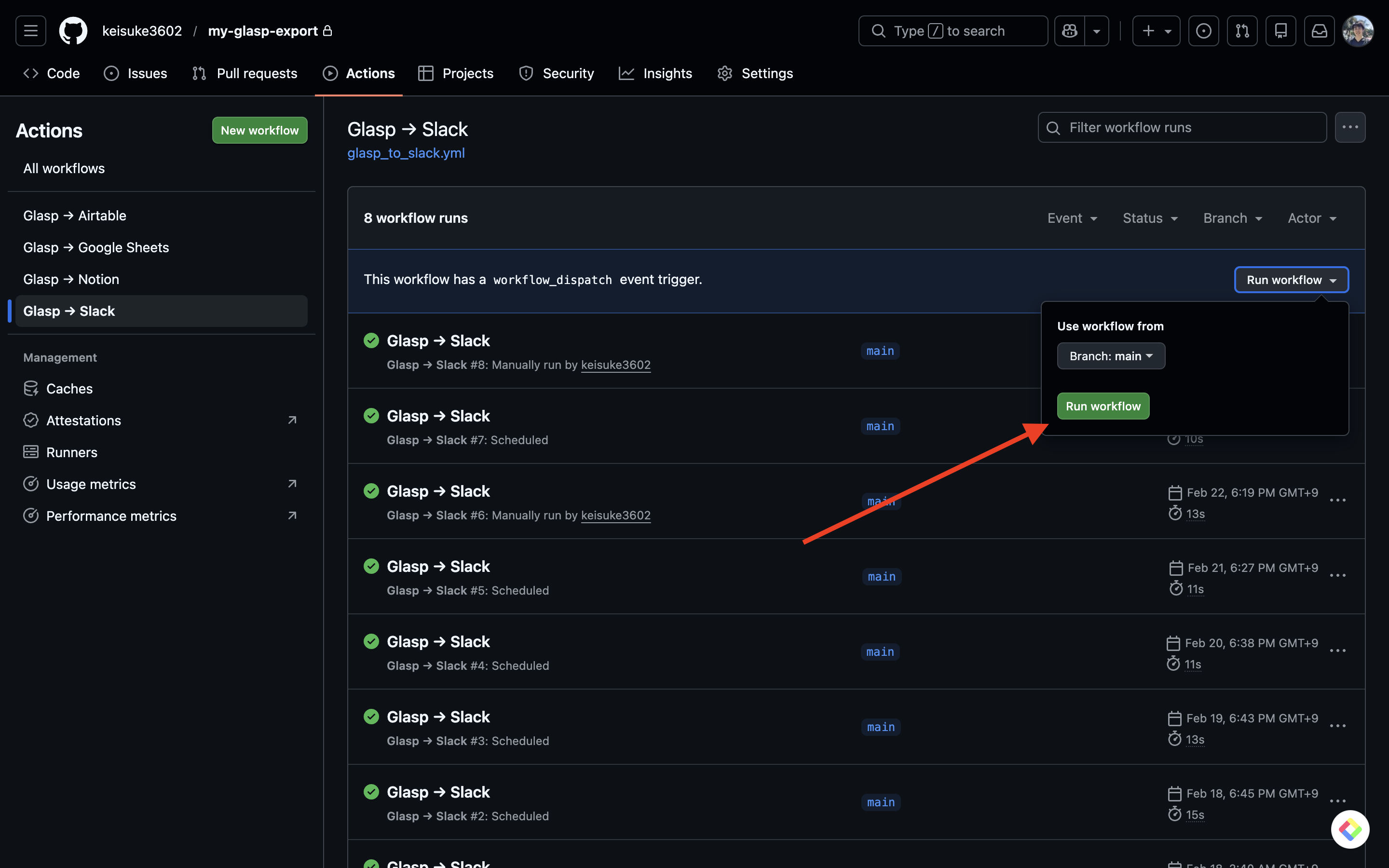
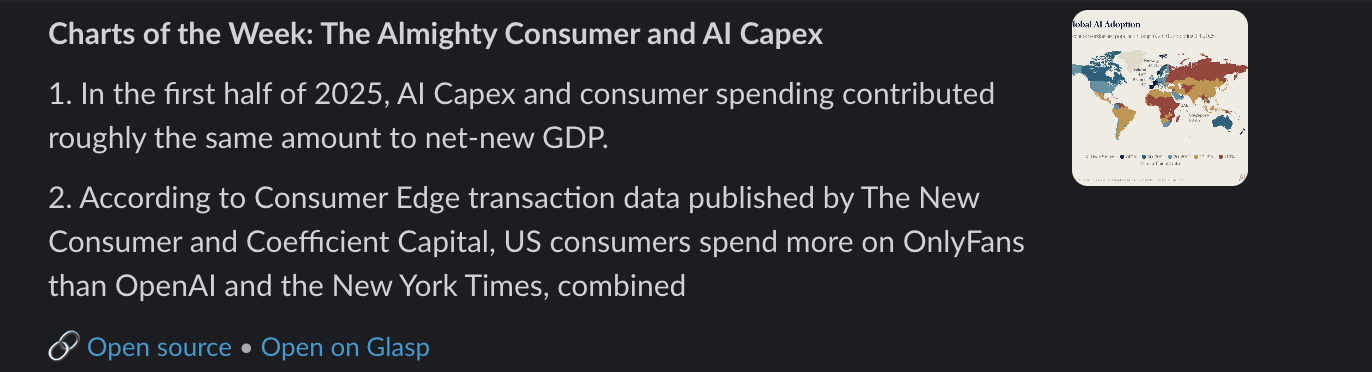
Each article appears as a Slack message with the title, numbered highlights, inline notes, and links to the original article and Glasp page.
How to Export Glasp Highlights to Google Sheets
1. Create a Google Cloud Service Account
Go to console.cloud.google.com and create or select a project
Enable the Google Sheets API (APIs & Services → Enable APIs)
Go to IAM & Admin → Service Accounts → Create Service Account
Give it a name → Done (no roles needed)
Click the service account → Keys → Add Key → Create new key → JSON → download
2. Share your Sheet with the Service Account
Copy the
client_emailfrom the JSON fileShare your Google Sheet with that email as Editor
3. Add secrets
GOOGLE_SERVICE_ACCOUNT_JSON— paste the entire contents of the JSON fileGOOGLE_SHEET_ID— from your sheet URL:docs.google.com/spreadsheets/d/THIS_PART/edit
4. Run workflow
Go to Actions → Glasp → Google Sheets → Run workflow
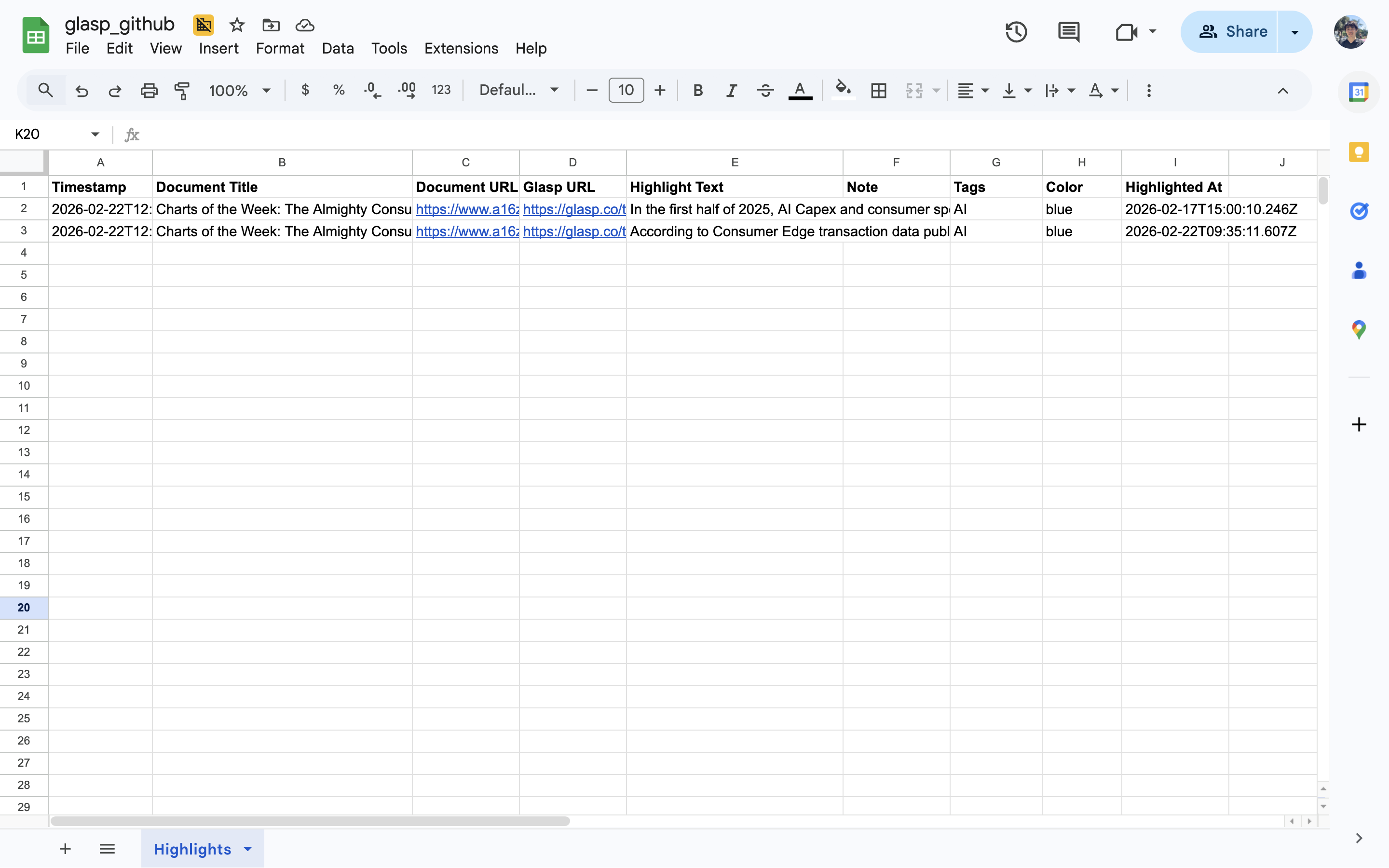
A "Highlights" tab and header row are created automatically on first run. Output columns: Timestamp, Document Title, Document URL, Glasp URL, Highlight Text, Note, Tags, Color, Highlighted At.
How to Export Glasp Highlights to Airtable
1. Set up your Base
Create a new Base in airtable.com
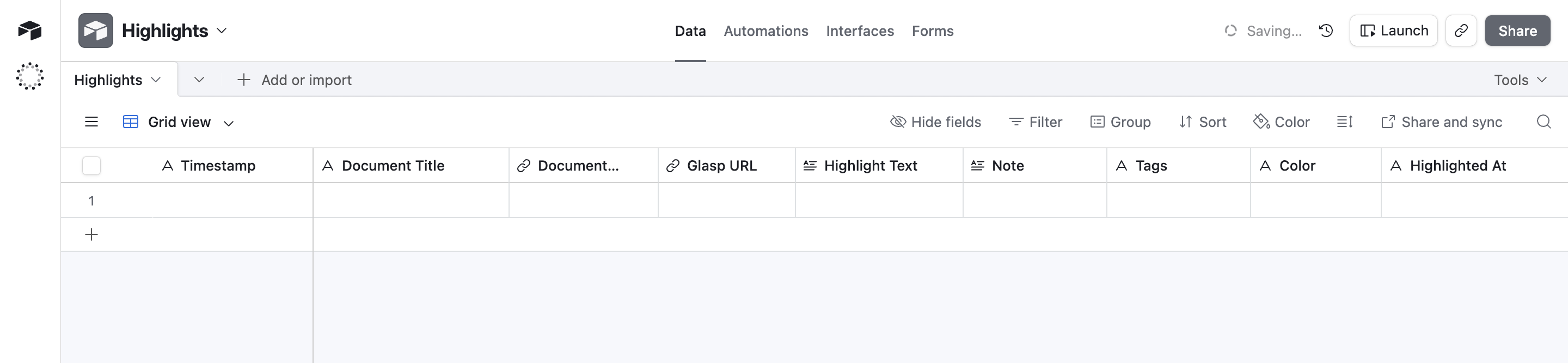
Rename the default table to
HighlightsAdd these fields as Single line text:
Timestamp,Document Title,Document URL,Glasp URL,Highlight Text,Note,Tags,Color,Highlighted At
2. Create a Personal Access Token
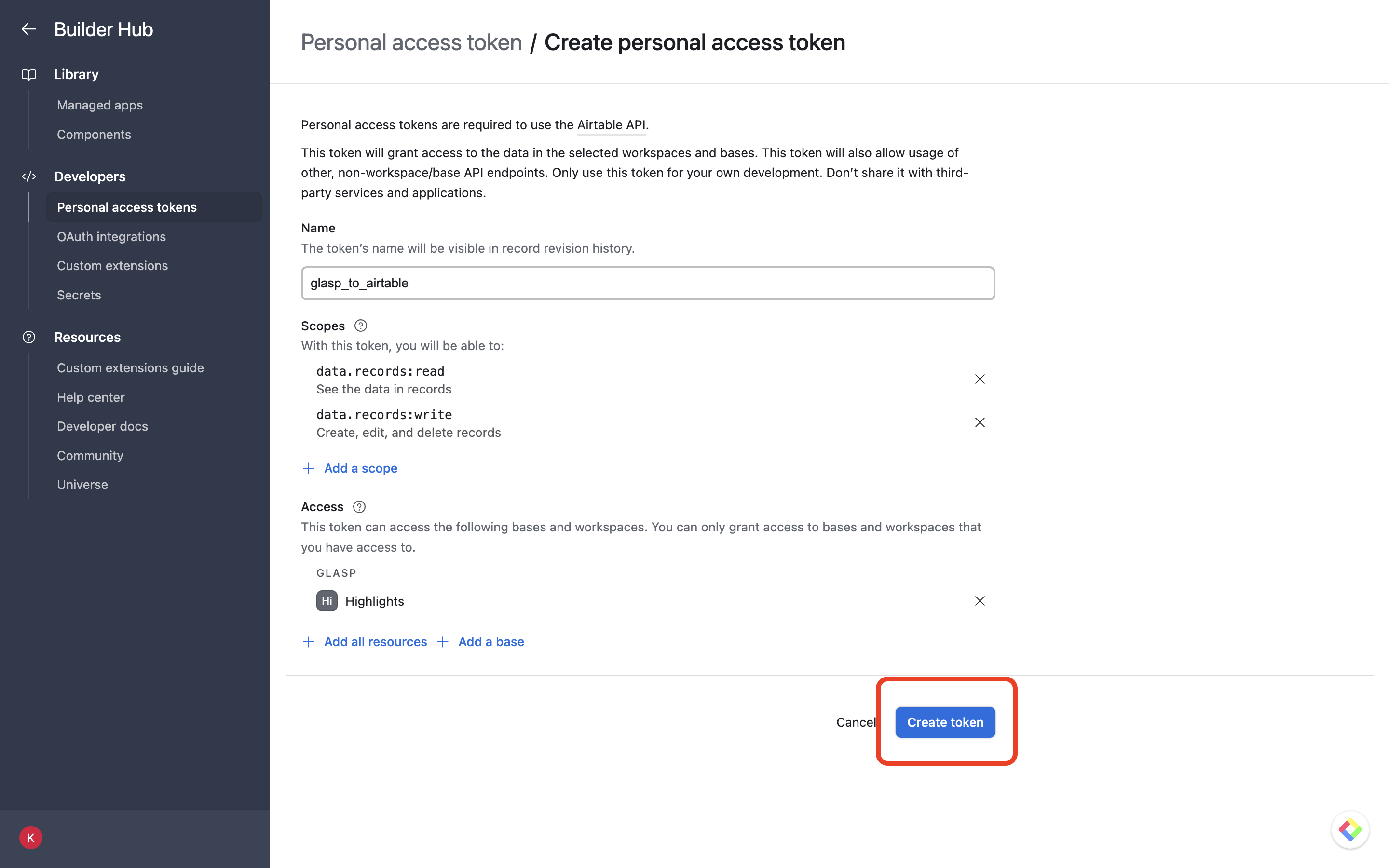
Go to airtable.com/create/tokens → Create new token
Add scopes:
data.records:readanddata.records:writeUnder Access, add your Base → copy the token
3. Get your Base ID
Your Base ID is in the URL:
airtable.com/appXXXXXXXXXXXXXX/...
4. Add secrets and run
AIRTABLE_API_KEY— your Personal Access TokenAIRTABLE_BASE_ID— your Base ID (starts withapp)
Go to Actions → Glasp → Airtable → Run workflow
How to Export Glasp Highlights to Notion
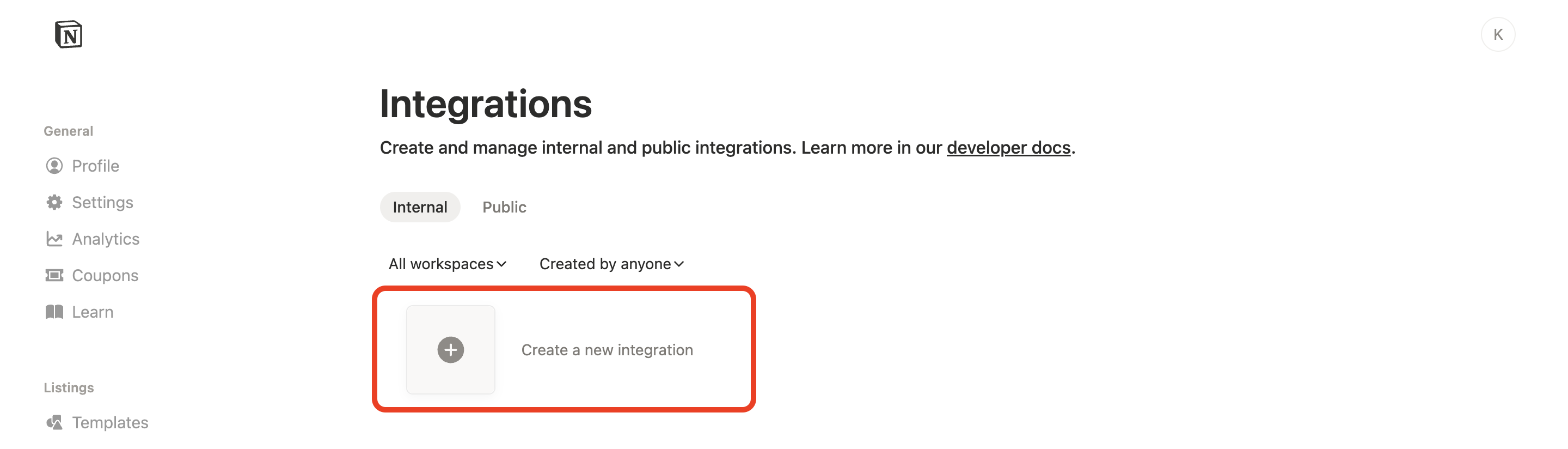
1. Create a Notion Integration
Go to notion.so/my-integrations → New integration
Give it a name → copy the Internal Integration Token
2. Create a Database
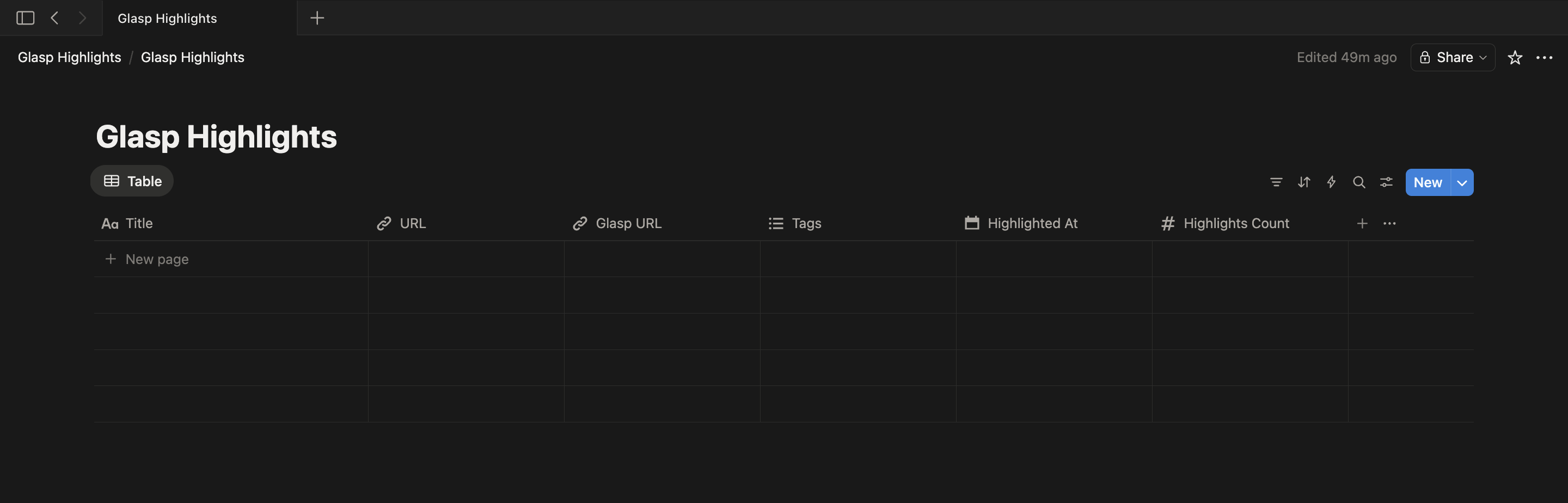
Create a new Database (Table view) with these properties:
Name— Title (default)URL— URLGlasp URL— URLTags— Multi-selectHighlighted At— DateHighlights Count— Number
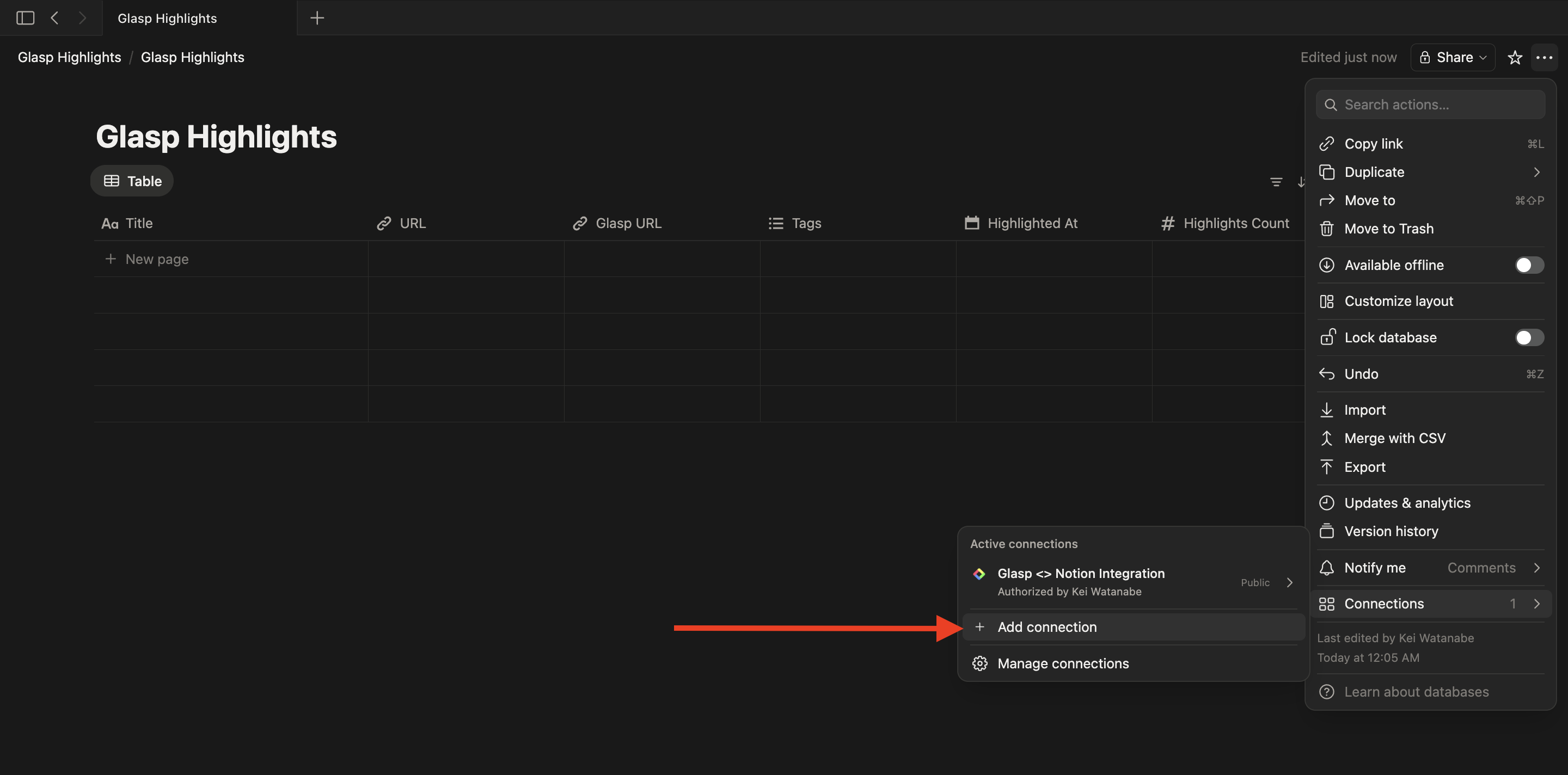
3. Connect the Integration Open the Database → click ··· (top right) → Connect to → select your integration
4. Get your Database ID
Open the Database as a full page.
The URL looks like:
notion.so/yourworkspace/DATABASE_ID?v=...Copy the 32-character ID before
?v=.
5. Add secrets and run
NOTION_API_KEY— your Integration TokenNOTION_DATABASE_ID— your Database ID
Go to Actions → Glasp → Notion → Run workflow
Each article becomes a Notion page. Highlights appear as Quote blocks with highlight colors preserved. Notes appear as Callout blocks (📝) directly below each highlight.
How to Customize the Schedule
By default, each workflow runs daily at 09:00 UTC. To change the schedule, edit the relevant .github/workflows/ file:
schedule:
  - cron: "0 9 * * *"    # Daily at 09:00 UTC (default)
  - cron: "0 9 * * 1"    # Every Monday
  - cron: "0 */6 * * *"  # Every 6 hours
Tip: If you change the frequency, update
LOOKBACK_HOURSto match so you don't miss highlights or see duplicates.
Frequently Asked Questions
Is Glasp Export really free?
Yes. GitHub Actions is free for public repos and includes 2,000 free minutes/month for private repos. The workflow typically runs in under 30 seconds.
Can I enable multiple destinations at the same time?
Yes. Just add the secrets for each destination. For example, add both SLACK_WEBHOOK_URL and NOTION_API_KEY to send highlights to both Slack and Notion.
What happens if I don't add secrets for a destination?
The workflow will skip gracefully with a message — no errors, no failed runs.
Does it send duplicate highlights?
No. Each destination uses deduplication to avoid sending the same highlight twice.
Do I need to know how to code?
No. The setup is entirely through GitHub's UI and the third-party tool's settings pages.
Get Started
→ github.com/glasp-co/glasp-export
Click "Use this template" and have your highlights flowing to your favorite tools in under 15 minutes.
Have a question or want to request a new destination? Open an issue — we'd love to hear from you.