How to Highlight YouTube Transcript

Sep 01, 2025
3 min read
1939 views

Did you know you can highlight YouTube video transcripts directly in your browser?
With Glasp’s free browser extension, you can highlight, copy, and save specific parts of YouTube transcripts—so you can capture key ideas without rewatching entire videos.
In this tutorial, you’ll learn how to highlight YouTube transcripts step by step and turn video content into organized notes you can revisit anytime.
YouTube Tutorial
👉 How to Highlight YouTube Videos
Step 1: Open the YouTube video and Highlight the transcript
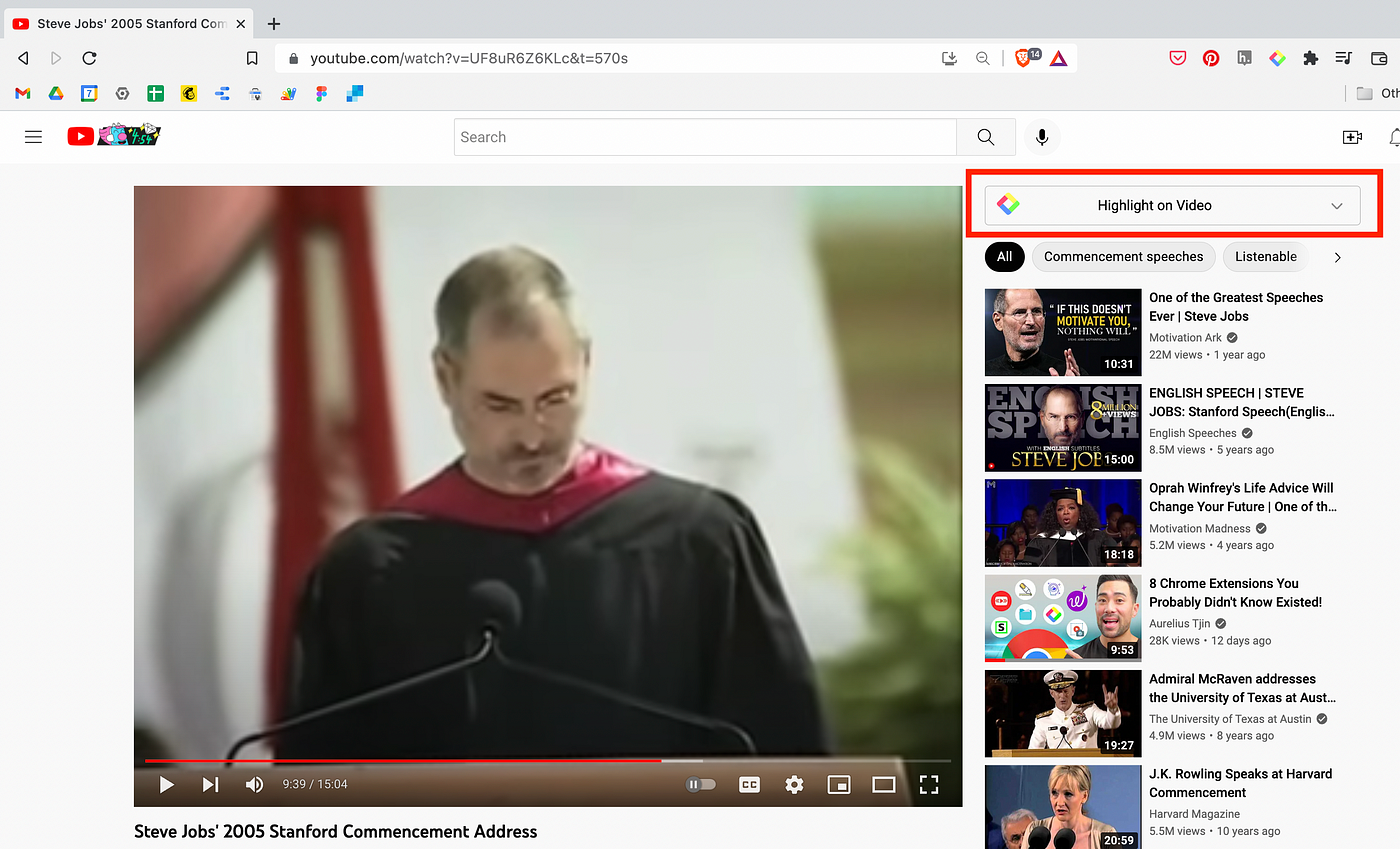
Please open any YouTube video you like. Then, you can see Highlight on Video at the top right of the screen. When you click that section, it opens the transcript of the YouTube video.
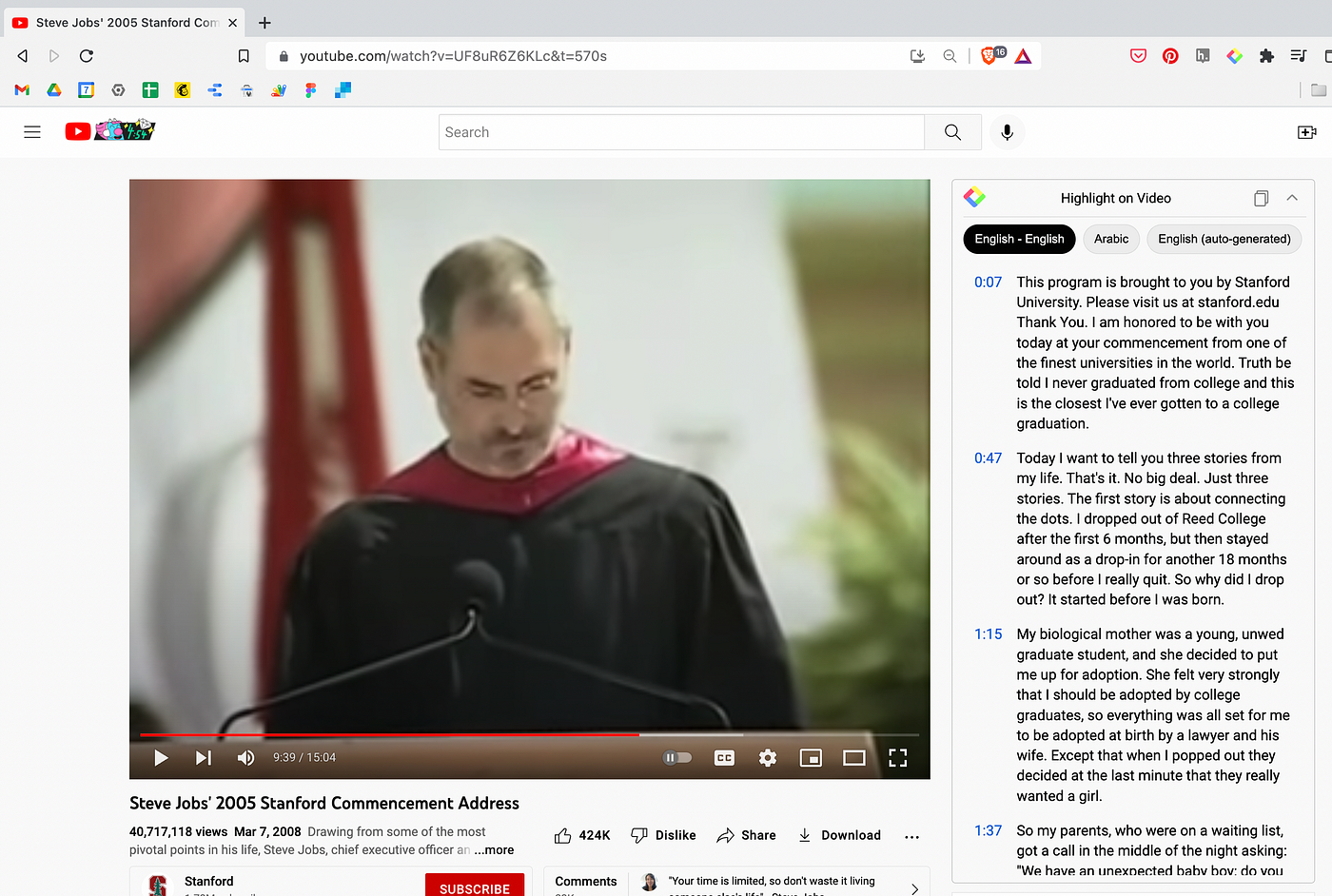
If you successfully log in, you can see a popup to highlight a sentence when you select the sentence. Then, please click any color you want. It highlights the sentence you choose.
If you cannot highlight the sentence, please check the login status by clicking the Glasp icon on the toolbar.

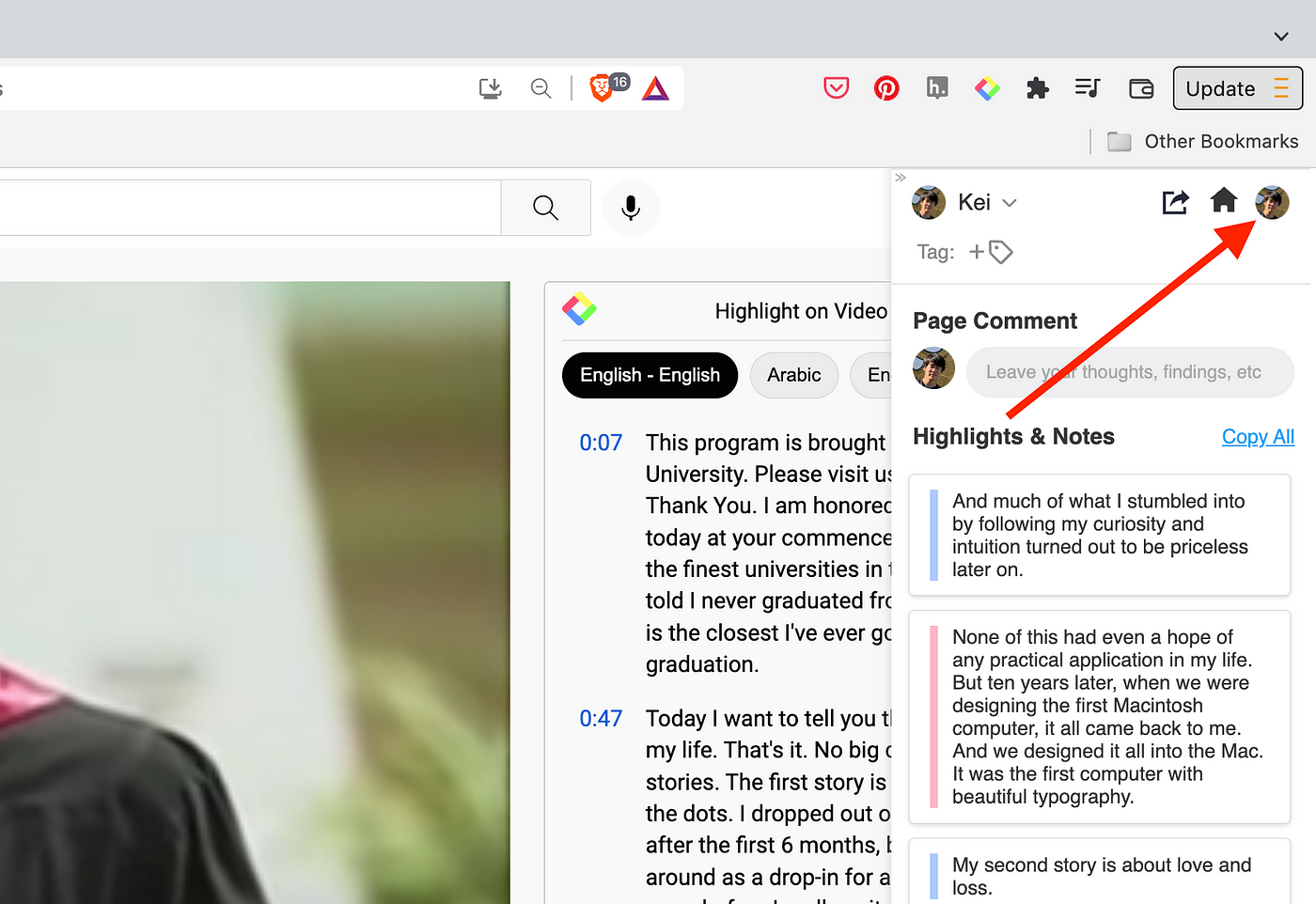
If you click the Glasp icon on the toolbar, it shows the sidebar. And you can see all the highlights and notes you made in this YouTube video.

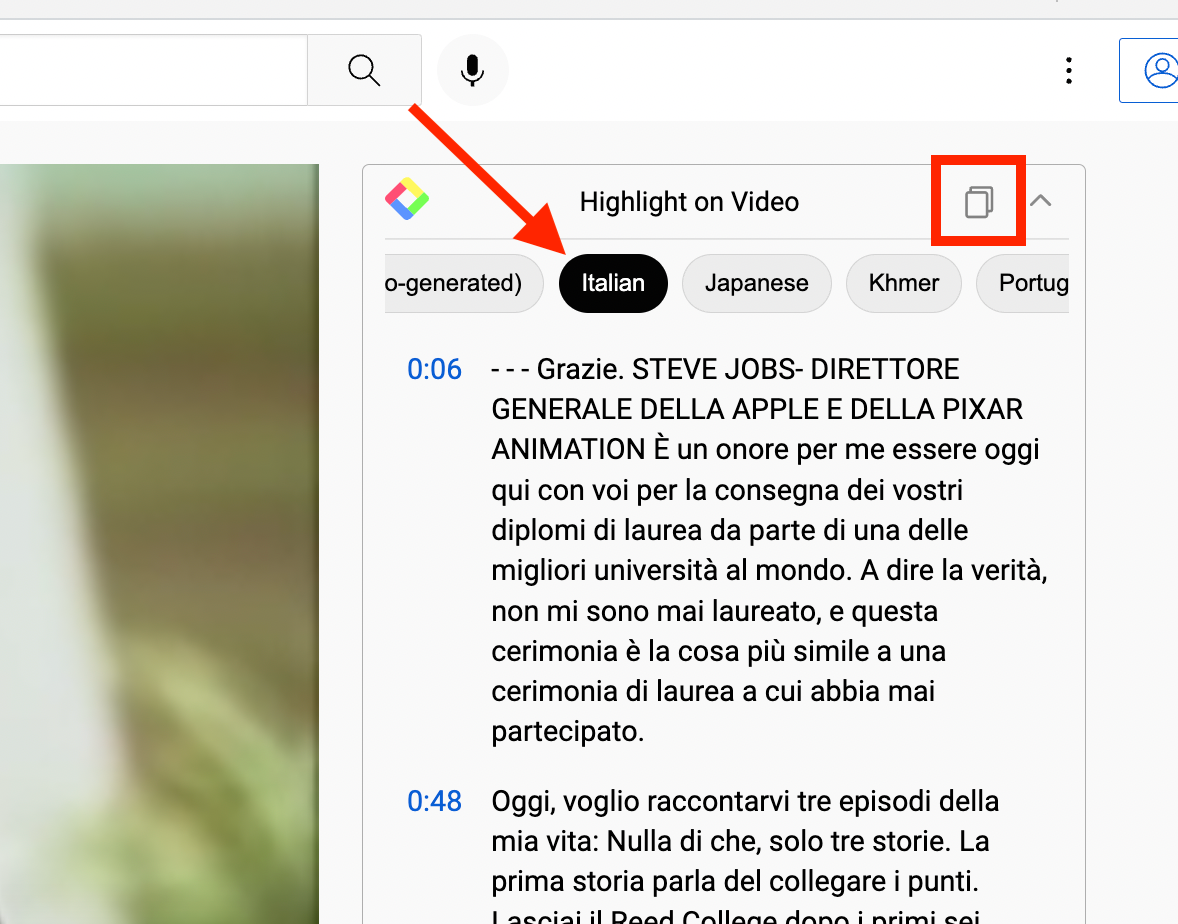
If you click other languages, you can see the transcript in other languages.
If you click the copy-content button (red square), you can copy all the transcripts and paste them anywhere such as Notion, Obsidian, Evernote, Apple note, etc.
Step 2: See your Highlights on your My Highlights page
After highlighting the transcript on YouTube, you can visit your profile page to see all the highlights and notes.
To do so, please click the Glasp icon on the toolbar and click your profile icon at the top right of the sidebar.
If you go to your profile page, it shows all the highlights & notes from the YouTube video. And clicking the timestamp (Ex: 03:23) opens the original YouTube video and starts playing from that time (Ex: 03:23).

Also, you can add notes, delete highlights, and share the highlights by clicking the three dots next to the highlights.

Tips
Even if you don’t sign up for Glasp, you can use the Glasp extension and copy the transcript of the YouTube video. So, please install and try it out.
A quick and easy way, isn’t it? In just one platform you can now easily view, access, and edit your YouTube highlights and notes — it is certainly possible with Glasp and YouTube!
We’re on Product Hunt now. Please visit and upvote for Glasp🙏
FAQs
Q. Why can’t I see the transcript option on some YouTube videos?
Some YouTube videos don’t provide transcripts (e.g., newly uploaded videos, music videos, or videos where captions are disabled). In such cases, the highlight feature won’t work.
Q. Can I highlight in different languages?
Yes. If the video provides transcripts in multiple languages, you can switch and highlight in your preferred language.
Q. Where can I see my saved YouTube highlights?
All your highlights and notes are saved on your Glasp profile (My Highlights page). You can revisit them anytime and even jump back to the exact video timestamp.
Q. Can I export YouTube transcripts to apps like Notion or Obsidian?
Yes. You can copy the transcript or export highlights to tools like Notion, Obsidian, Logseq, and Evernote for free.
Q. Can I share my YouTube highlights with others?
Yes. From your Glasp profile, you can copy the link to your highlights and share it. Anyone with the link can view them.
Q. Does this work on mobile YouTube?
Not yet. Glasp’s transcript highlighting works best on desktop browsers (Chrome, Edge, Safari, Brave, etc.). On mobile, you can still view your saved highlights via your Glasp profile.
Before you leave
Thanks for reading. We hope this tutorial helps you capture and organize key insights from YouTube transcripts more effectively.
See you next time,
Glasp team