How to Export Kindle Highlights as Markdown Using Glasp

Feb 01, 2026
3 min read
133 views

Do you want to export your Kindle highlights as Markdown so you can reuse them in tools like Obsidian, Logseq, Notion, or GitHub? While Kindle makes it easy to highlight text, it doesn’t provide a clean, flexible way to export highlights in Markdown format.
With Glasp, you can easily export all your Kindle highlights as clean Markdown without worrying about Kindle’s export limits. Glasp collects your highlights from Kindle Cloud Reader and lets you copy or download them in Markdown, making them ready for note-taking, knowledge management, or documentation workflows.
In this tutorial, you’ll learn how to export Kindle highlights as Markdown using Glasp, step by step. By the end, you’ll be able to turn your Kindle highlights into portable, reusable Markdown notes you can edit, link, and organize across your favorite tools.
👉 Glasp — Kindle Highlights Exporter
Step 1: Install the Glasp extension to your browser
Click Add to Chrome(Brave, Safari, or Edge) and install Glasp to your chosen browser.
After you install the extension, make sure you pin it on the toolbar. It makes it easier to open the Glasp on the sidebar. If you're asked to sign in to Glasp on the sidebar, please do it.

Step 2: Sign in to Kindle Cloud Reader
After you install Glasp, please visit Kindle Cloud Reader. You can search Kindle Cloud Reader on Google. And the page's URL is like https://read.amazon.com or https://read.amazon.jp

Step 3: Select Kindle books to export
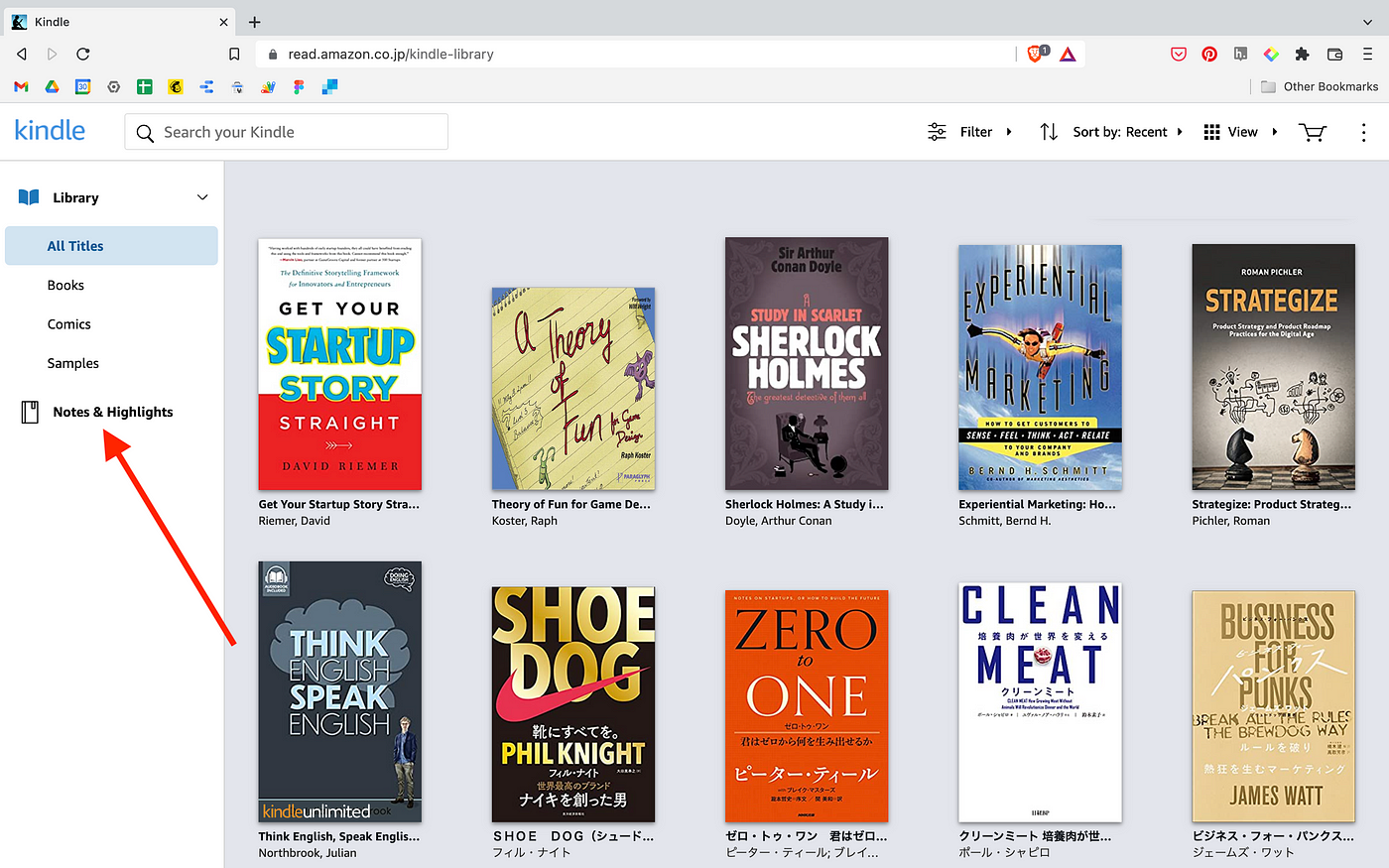
If you successfully log in to Kindle Cloud Reader, you’ll see a page like the one below. Then, click Notes & Highlights on the left.
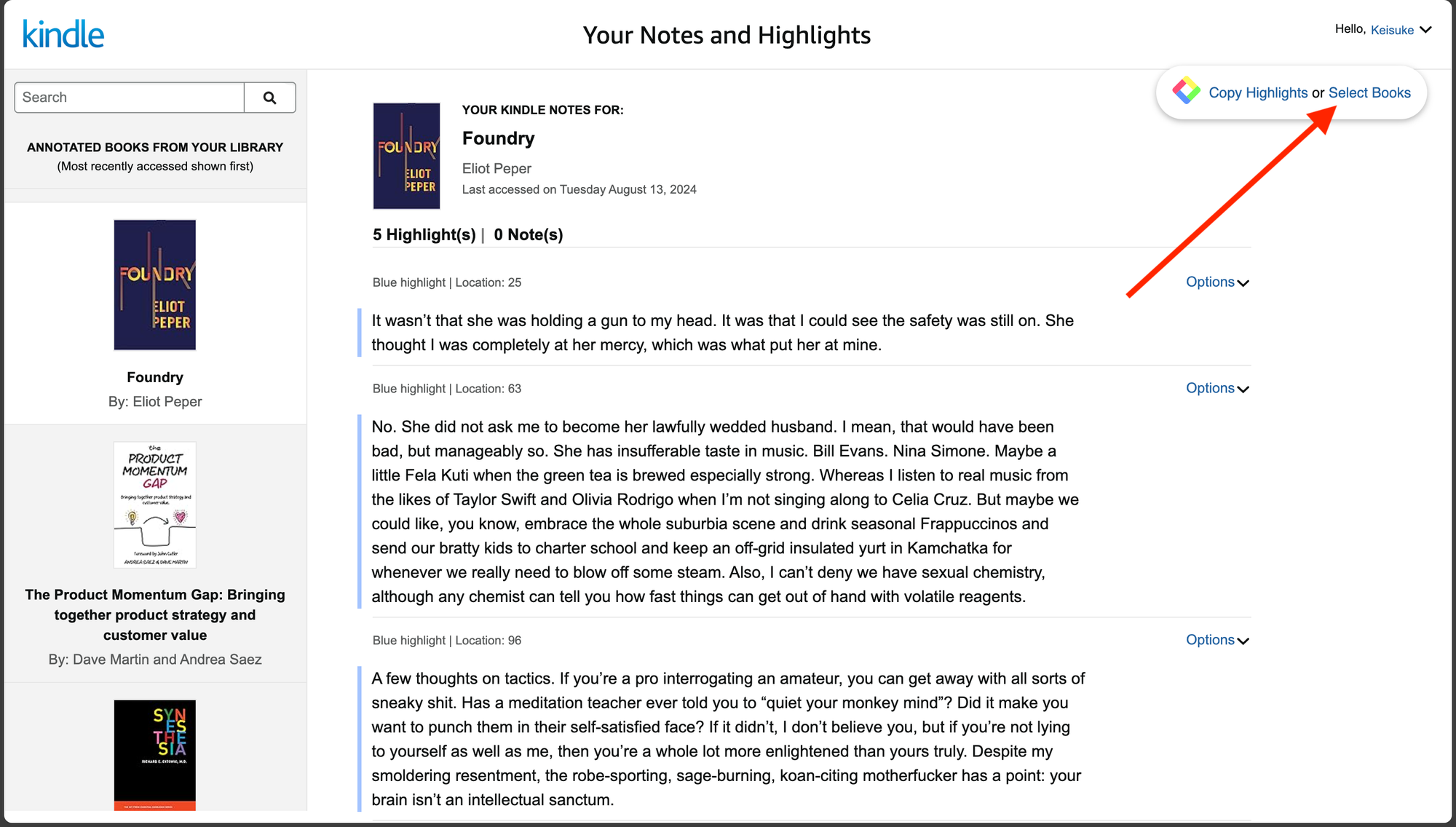
You can see a page below. Select a book to copy highlights on the left. Then, please click Select Books on the Glasp modal at the top right. If you cannot see the modal, so make sure that you've successfully installed it.
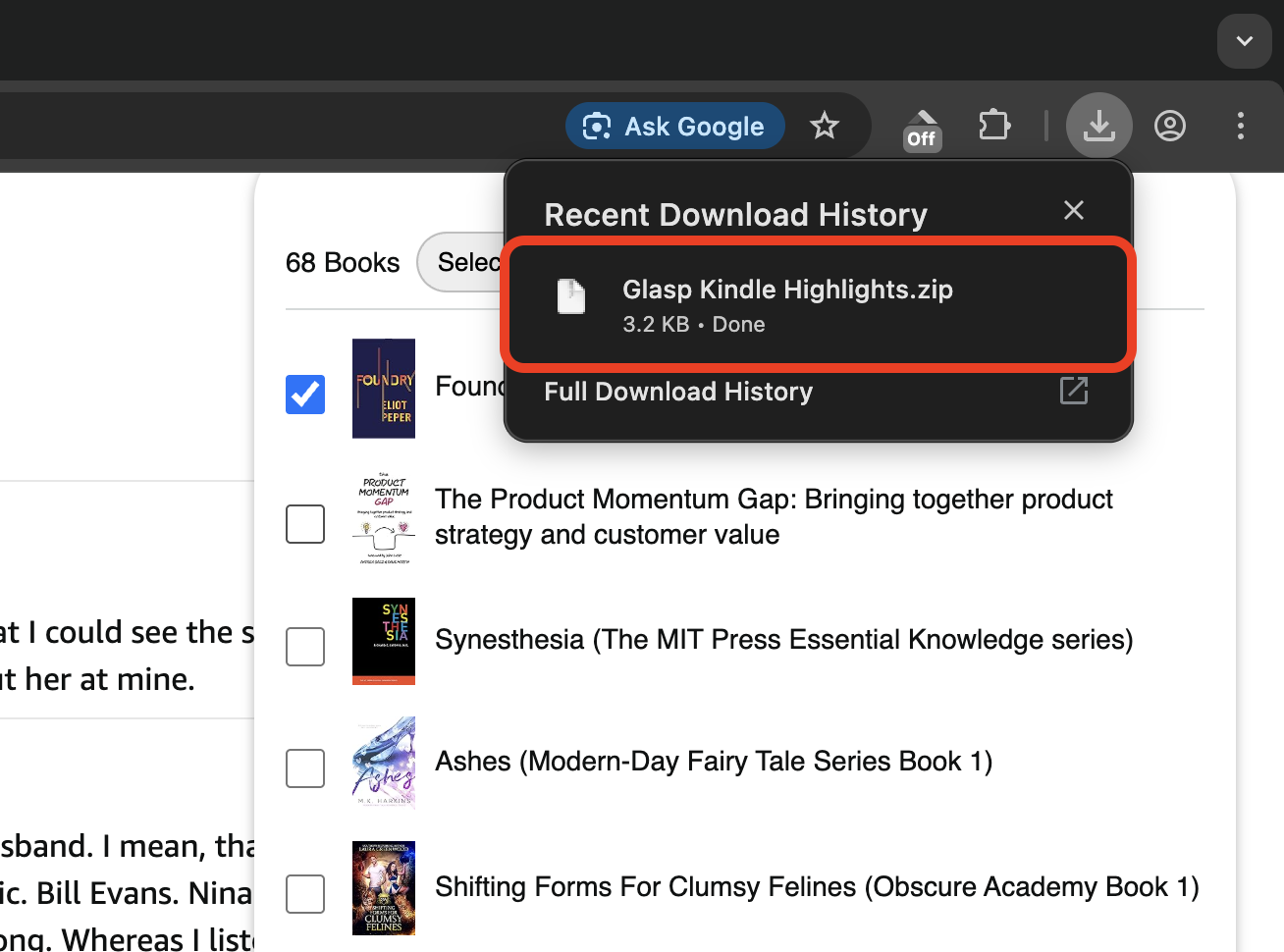
Then, please select books you'd like to download as Markdown.
Step 4: Export Kindle highlights as Markdown
After selecting books, click Markdown in the bottom right. Your Kindle highlights will start exporting.

If the file downloads successfully, you’ll see a popup in the top right. If it doesn’t appear, please check your local folder on your desktop.
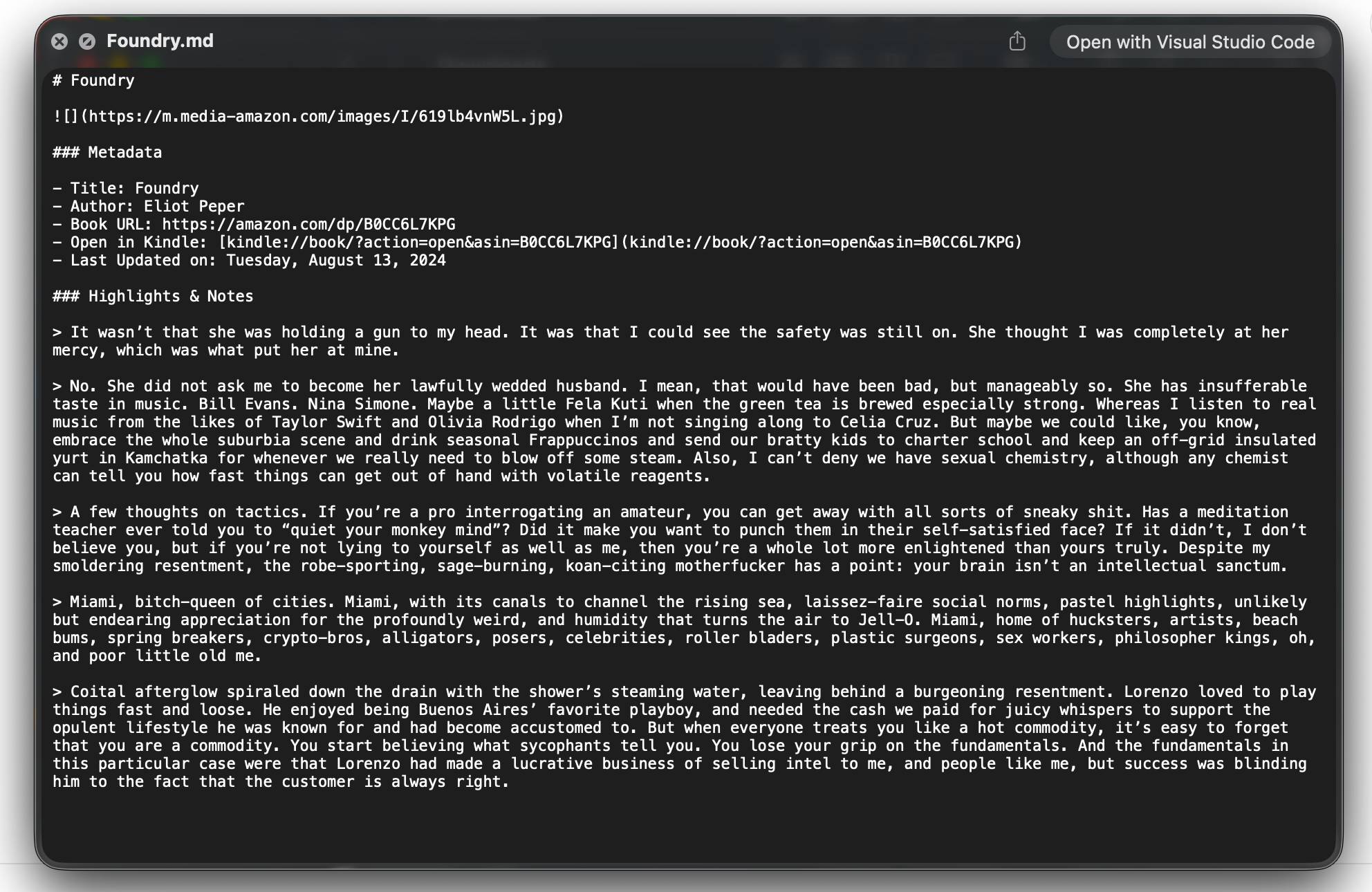
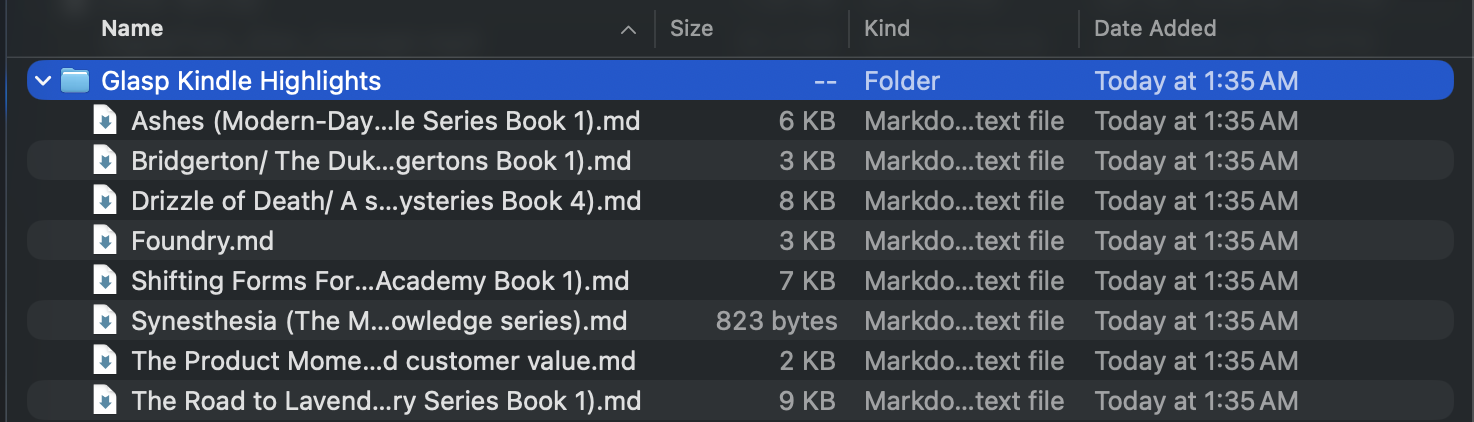
Open the downloaded file. If it’s zipped, please unzip it. You'll see a file like the one below.
Step 5: Bulk export Kindle highlights as Markdown
To export highlights from multiple Kindle books at once, select the books you want in the Glasp modal on the Kindle Cloud Reader page.
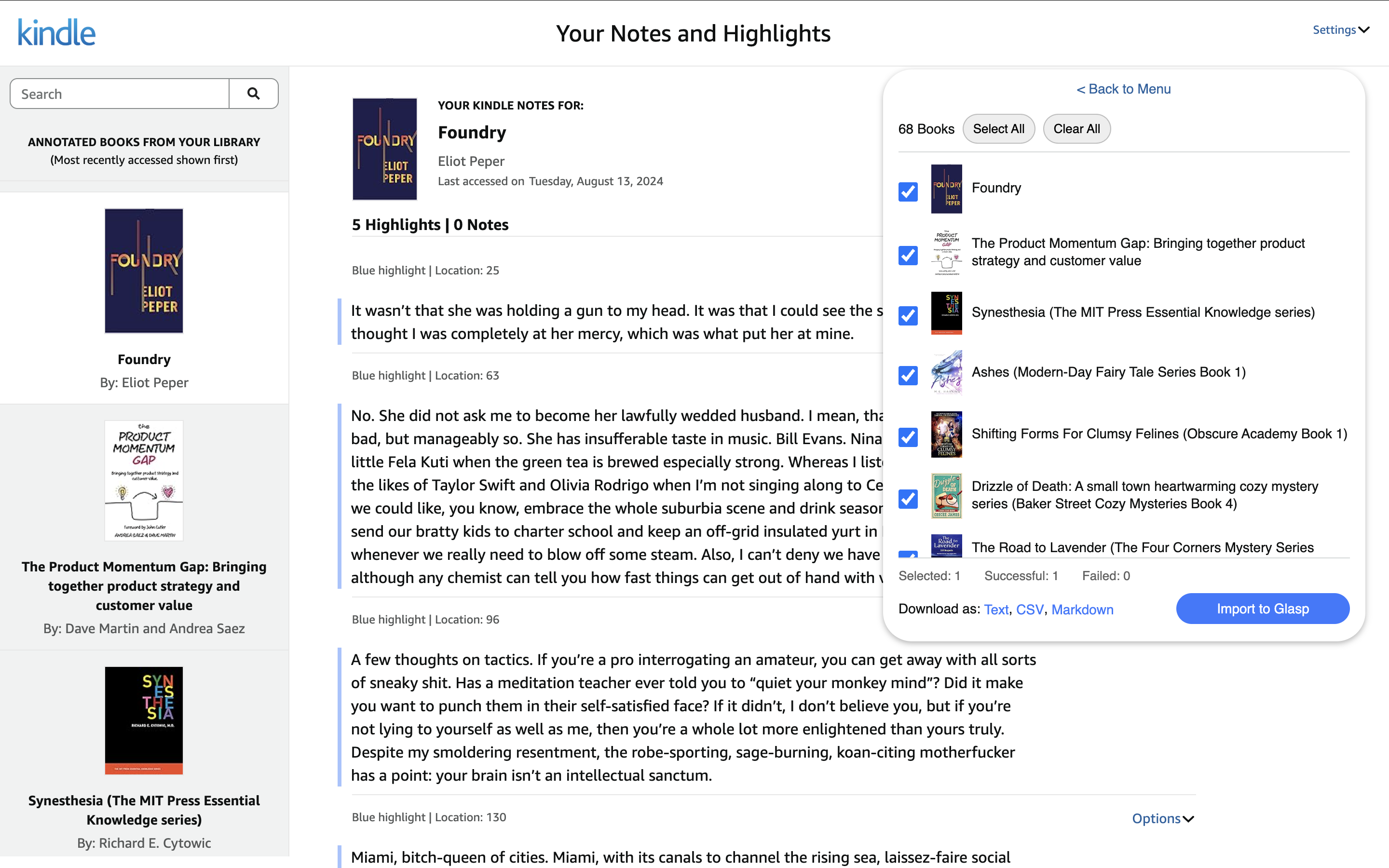
After exporting Kindle highlights, you’ll see files like the ones below.
📚 Want to do more with your Kindle highlights?
👉 How to Export Kindle Highlights & Notes
👉 Try Kindle Highlights Exporter for free
Before you leave
Before you leave, remember that exporting your Kindle highlights as Markdown gives you full control over your notes. Markdown makes your highlights portable, editable, and future-proof—so they’re never locked into a single app.
With Glasp, you can reuse the same Kindle highlights across tools like Obsidian, Logseq, Capacities, Notion, or even GitHub, depending on how you prefer to build your knowledge system.
Once your highlights are in Markdown, it becomes much easier to link ideas, refine your notes, and turn reading into long-term, reusable knowledge.
Glasp team
–