How to Use the Frame Tool vs Clipping Masks in Photoshop?
TL;DR
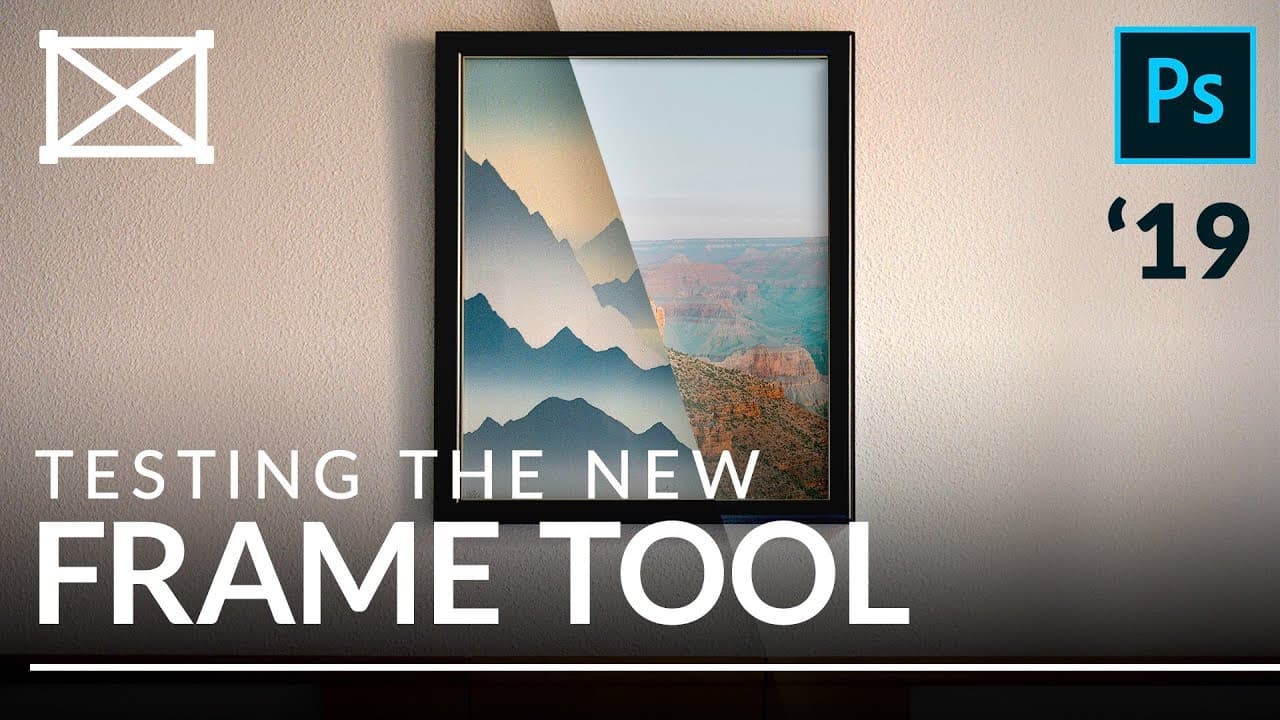
The Frame Tool in Photoshop CC 2019 allows users to easily create and manipulate frames for images using simple shapes. However, advanced users may prefer Clipping Masks for more complex tasks, as they offer greater flexibility, the ability to use multiple images, and support for adjustment layers without increasing file size.
Transcript
today I'm going to show you how to use the new frame tool in Photoshop CC 2019 and we're going to compare it with one of my favorite tools clipping masks hey there and welcome to phlearn my name is Aaron NACE you can find me on phlearn comm where we make learning fun now it's this episode we're talking all about the new frame tool in Photoshop CC 2... Read More
Key Insights
- 🖼️ The frame tool in Photoshop CC 2019 simplifies the process of creating frames for images, particularly for beginners who want a quick and easy solution.
- 👻 The frame tool works seamlessly with smart objects, allowing for easy scaling and maintaining image resolution.
- 👤 Although the frame tool has its advantages, advanced users may still prefer to use clipping masks for more complex tasks, such as adding multiple images or using custom shapes.
- 😷 Clipping masks offer greater flexibility and control, allowing for more creative and advanced compositions.
- 🖼️ Both the frame tool and clipping masks offer options to adjust the size and position of the image within the frame.
- 😒 Clipping masks also allow for the use of adjustment layers to further enhance the composition.
- 😷 The frame tool and clipping masks do not affect file size, making them efficient choices for managing images within a project.
Install to Summarize YouTube Videos and Get Transcripts
Explore YouTube Video Summarizer or Get YouTube Transcript Extractor
Questions & Answers
Q: How does the frame tool in Photoshop CC 2019 make it easier for beginners?
The frame tool provides a simple way for beginners to create frames for their images in Photoshop. It offers options to choose between rectangles and ellipses, and also works with smart objects for easy scaling.
Q: Can the frame tool be used with different images within a single frame?
No, the frame tool is designed to hold only one image within a frame. For multiple images within a frame, the use of clipping masks is recommended.
Q: How does the use of clipping masks offer more options for advanced users?
Clipping masks allow advanced users to achieve more complex tasks. They can clip multiple images to a shape, create custom shapes using selection tools, and even add adjustment layers to further enhance the composition.
Q: Does using the frame tool or clipping masks affect file size?
When using the frame tool, placing linked smart objects does not increase the file size, making it an efficient choice for managing different images. Clipping masks also do not increase file size as they only affect the visibility of the image within the shape.
Key Insights:
- The frame tool in Photoshop CC 2019 simplifies the process of creating frames for images, particularly for beginners who want a quick and easy solution.
- The frame tool works seamlessly with smart objects, allowing for easy scaling and maintaining image resolution.
- Although the frame tool has its advantages, advanced users may still prefer to use clipping masks for more complex tasks, such as adding multiple images or using custom shapes.
- Clipping masks offer greater flexibility and control, allowing for more creative and advanced compositions.
- Both the frame tool and clipping masks offer options to adjust the size and position of the image within the frame.
- Clipping masks also allow for the use of adjustment layers to further enhance the composition.
- The frame tool and clipping masks do not affect file size, making them efficient choices for managing images within a project.
- With both techniques available, users can choose the method that best suits their needs and the complexity of their project.
Summary & Key Takeaways
-
The frame tool in Photoshop CC 2019 allows users to quickly create frames in the shape of rectangles, ellipses, text, or custom shapes.
-
The frame tool works with smart objects, allowing users to easily scale and place images within the frame without losing resolution or increasing file size.
-
However, for more advanced applications and complex shapes, the use of clipping masks may be preferred instead.
Read in Other Languages (beta)
Share This Summary 📚
Summarize YouTube Videos and Get Video Transcripts with 1-Click
Try YouTube Summary with ChatGPT & Claude or YouTube Transcript Generator
Explore More Summaries from PHLEARN 📚


Summarize YouTube Videos and Get Video Transcripts with 1-Click
Try YouTube Summary with ChatGPT & Claude or YouTube Transcript Generator